Conversion Tracking
Using conversion tracking, you can add the necessary JavaScript code to track your analytics performance and report conversion data back to your advertising platforms for better conversion optimization.
Go to Settings → Tracking. Each service has its own card under Tracking Services; click Manage on a card to set it up, then save your changes. A check mark on the card shows that the service is connected.
Tracking events
Section titled “Tracking events”LightFunnels sends the following events to your tracking services:
- View content
- Initiate checkout
- Add payment info
- Purchase
- Lead
- Add To Cart
Google Analytics
Section titled “Google Analytics”LightFunnels supports Google Analytics 4. Setup Google Analytics using these instructions from Google.
Once your property is created, you should receive a measurement ID in the following format: G-XXXXXXXXXX.
Paste that ID in the Google Analytics Tracking ID field.
Google Tag Manager
Section titled “Google Tag Manager”Paste your container ID (format GTM-XXXXXXXX) in the Google Tag Manager ID field.
To get the LightFunnels events in your GTM workspace, download the GTM container file from the Google Tag Manager card and import it in your GTM workspace. The card also links to a video tutorial.
Google Ads
Section titled “Google Ads”Add your Google Ads Tag ID (format AW-XXXXXXXXX) and your conversion actions. See Google Ads for the full setup.
Facebook Pixel
Section titled “Facebook Pixel”You can add one or more Facebook Ads Pixel to track your ad campaign conversions and optimize your performance.
Click Add new pixels, enter a Pixel name and paste the Pixel ID, then click Add.
You can choose which pixel to use in each funnel by going to the funnel’s settings.
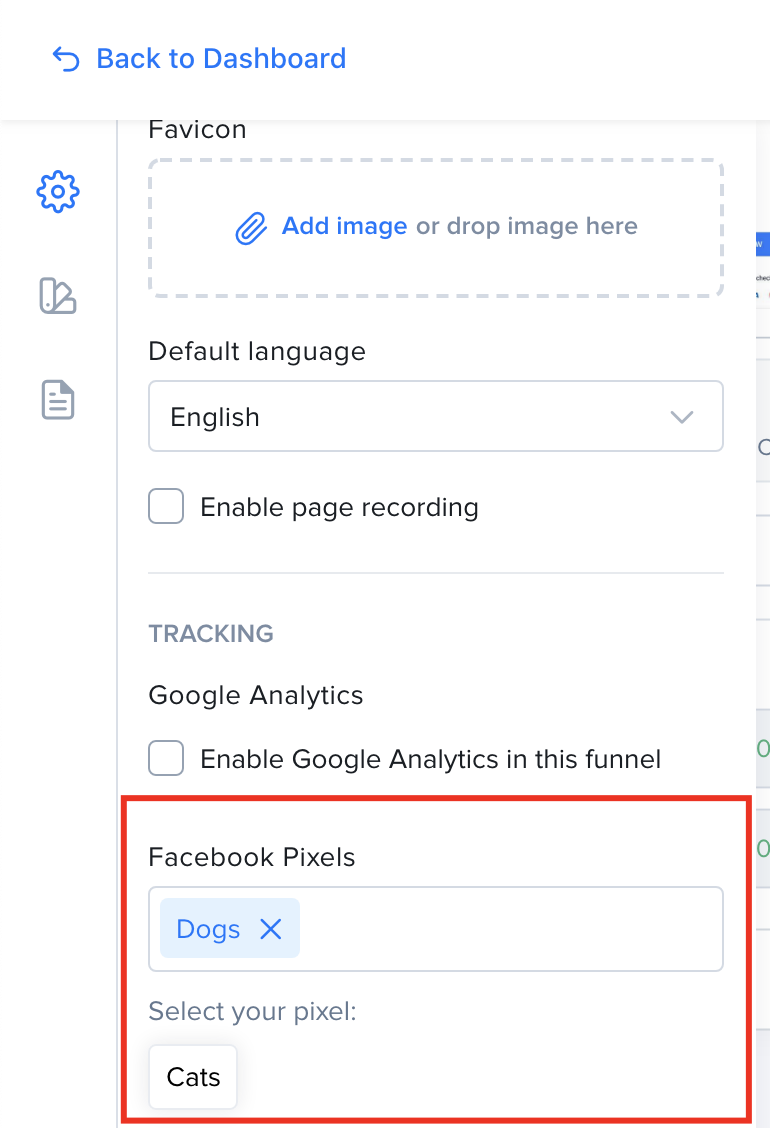
You can also connect the Facebook Conversion API from the same card. See Facebook Conversion API (CAPI).
TikTok Pixel
Section titled “TikTok Pixel”Lightfunnels TikTok integration allows you to set up your TikTok pixel in a few clicks. A TikTok Pixel is a piece of code that you can place on your website. This great tool allows you to keep track of sales and user activity, and target your ads to the right audience.
Open the Tiktok card, click Add new pixels, enter a Pixel name and paste the Pixel ID. To also send server events, see TikTok Conversion API (CAPI).
Snapchat, Pinterest and OpenAI pixels
Section titled “Snapchat, Pinterest and OpenAI pixels”The Snapchat, Pinterest and OpenAI cards work the same way: click Add new pixels, enter a Pixel name and paste the Pixel ID. Each card also lets you connect that platform’s Conversion API: