Introduction to the Funnel Builder
A sales funnel is a series of pages that your customer goes through in their buying process.
The funnel builder allows you to build your funnel in a simple yet intuitive manner.
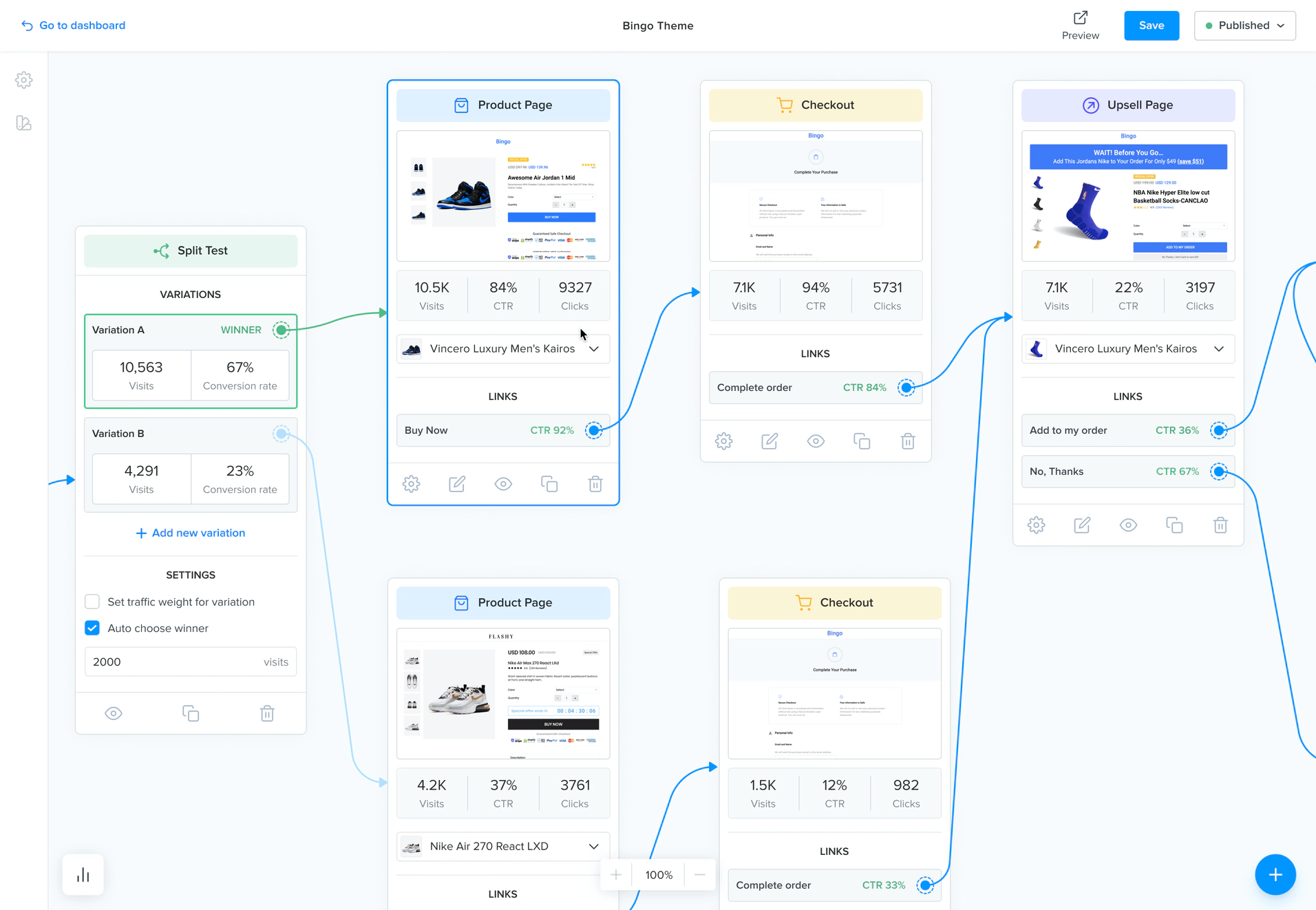
Funnel Builder
Funnel Tabs
Section titled “Funnel Tabs”The top bar of the funnel builder has four tabs:
Overview: the stats of your funnel. See Overview below.Build & Design: the canvas where you add, link and edit your pages.Settings: the settings of your funnel. See Settings below.Languages: the language of your funnel and its default texts. See Languages below.
The top bar also shows your funnel name and currency, and has these actions:
Preview: open your funnel as visitors see it. You must publish the funnel first.Share: copy the link of your funnel. ChooseTest modeorLive mode, then clickCopy link. The funnel must be published and have at least one page.Published/Unpublished: change the status of your funnel.
Navigation
Section titled “Navigation”To navigate around the funnel builder, you can:
- Pan around by clicking an empty area and dragging around
- Scrolling up and down to zoom in and out
At the bottom left corner, you can also find:
- The language of your funnel. Click it to switch language.
- The zoom controls (+ and -) with the current zoom level.
Center pages: bring your pages back to the center of the screen.
At the top right corner, you can find these actions:
Revert: undo all the changes you haven’t saved yet.Clone: chooseClone this funnelto make a copy of it in your account, orShare to another accountto get a token that another account can use to copy your funnel.Save: save your changes.
The avatars next to these actions show who else is working on the funnel.
Canvas Sidebar
Section titled “Canvas Sidebar”The small sidebar on the left of the canvas has:
Issues: a list of problems you may need to fix for your funnel to work properly. A red badge shows the number of issues.Manage template: only shows when your funnel is used as a template. It opens the template in your partners dashboard.
Adding Funnel Pages
Section titled “Adding Funnel Pages”You can add a page to your funnel in two ways:
- By clicking the + icon on the bottom right corner
- By dragging a link and releasing the mouse on an empty area
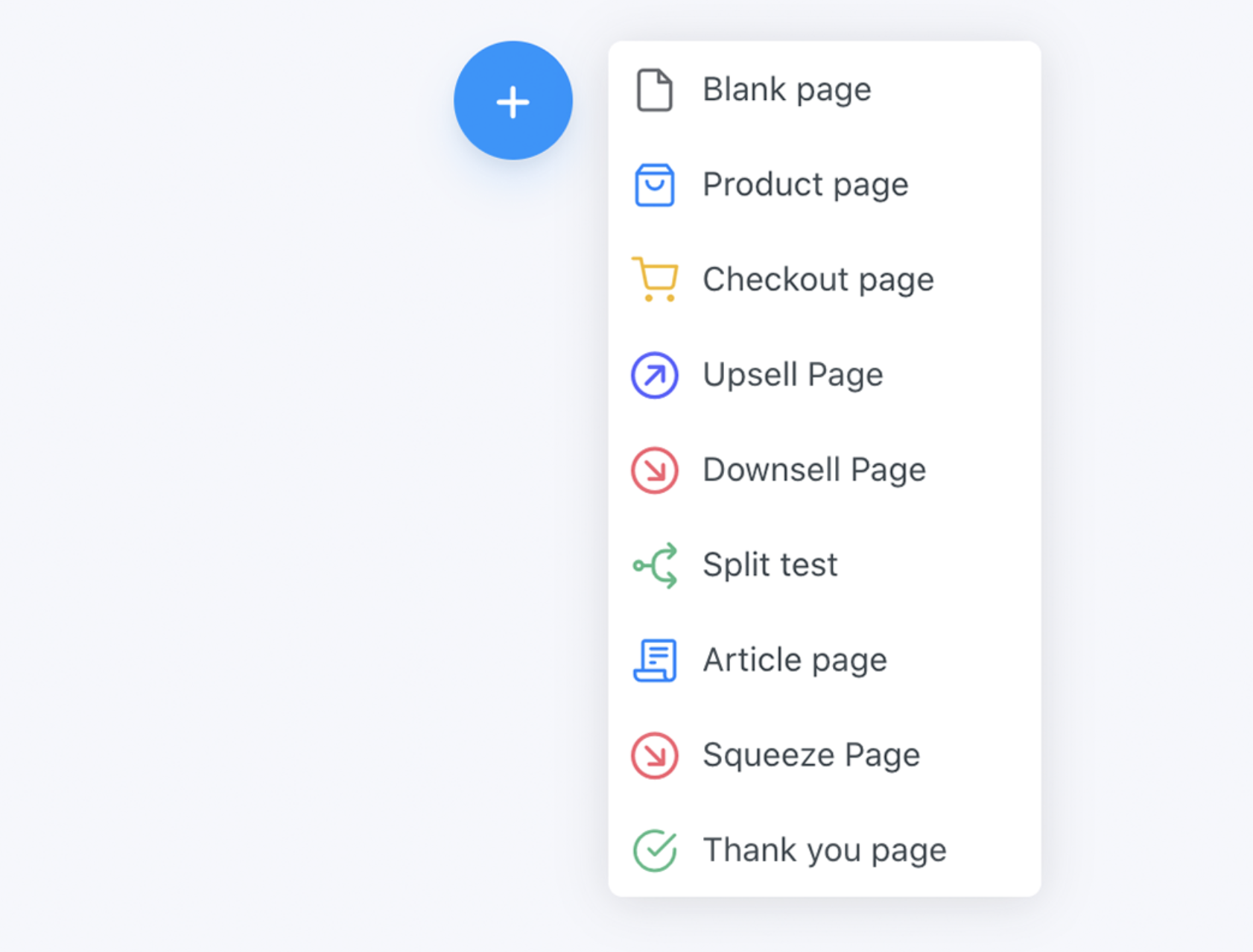
Adding a page to the funnel builder
Editing Funnel Pages
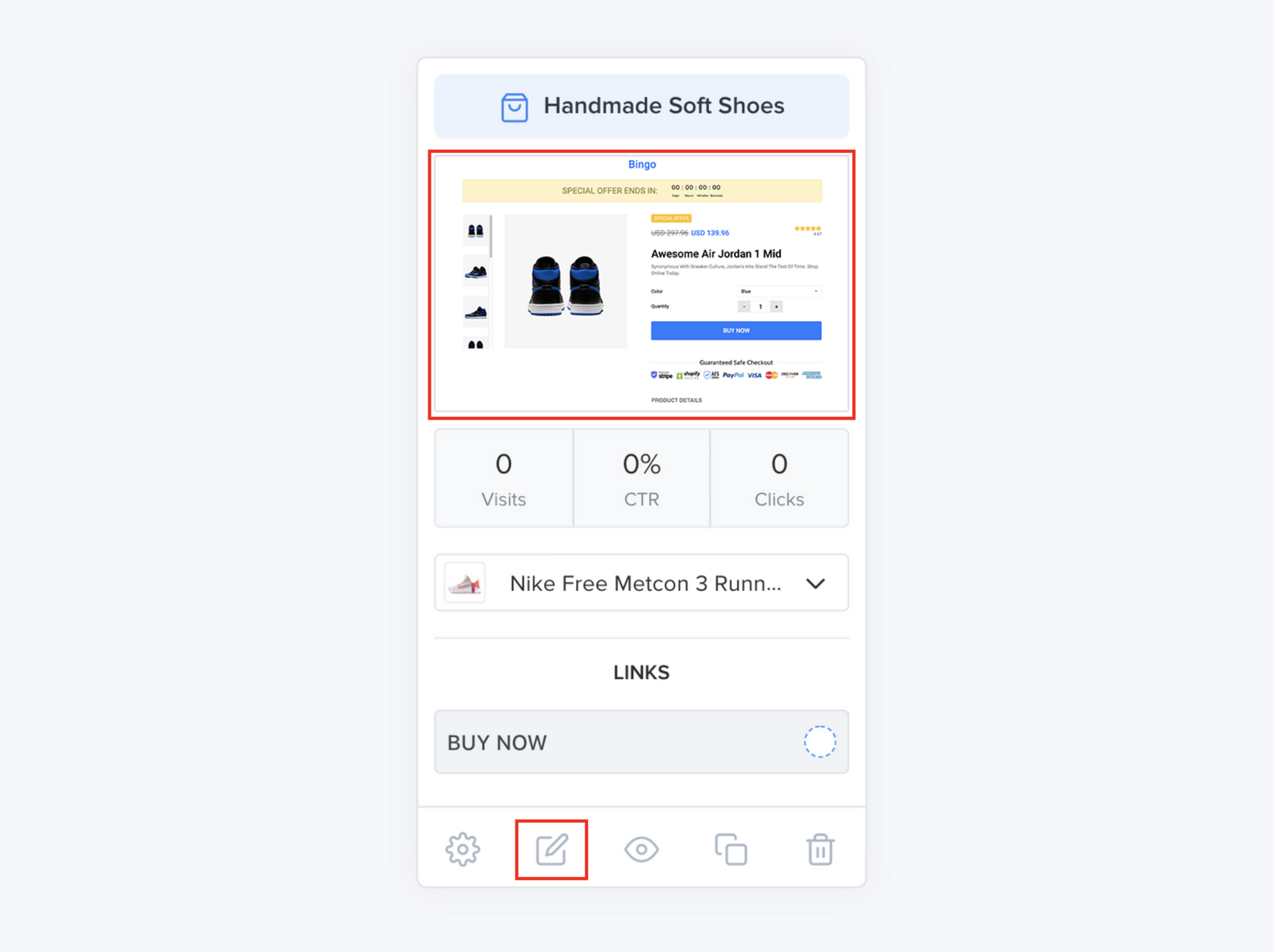
Section titled “Editing Funnel Pages”You can edit a page in the page builder in two ways:
- Clicking on the page thumbnail image
- Clicking on the edit icon at the bottom of the page node
The other icons at the bottom of the page node let you open the page settings, preview the page, duplicate it (or copy it to another funnel) and delete it.
This will open the page builder where you can edit the content of your page.
Funnel Page Types
Section titled “Funnel Page Types”There are several page types that you can choose from. Each page type can be used for a different purpose.
We go over each page type in details on the Funnel Page Types page.
Page Links
Section titled “Page Links”Links, buttons and forms in your pages appear on the Funnel Builder as a blue circle. You can click and drag each link onto another page to create a connection or onto a blank area to create a new page and connect it to your link.
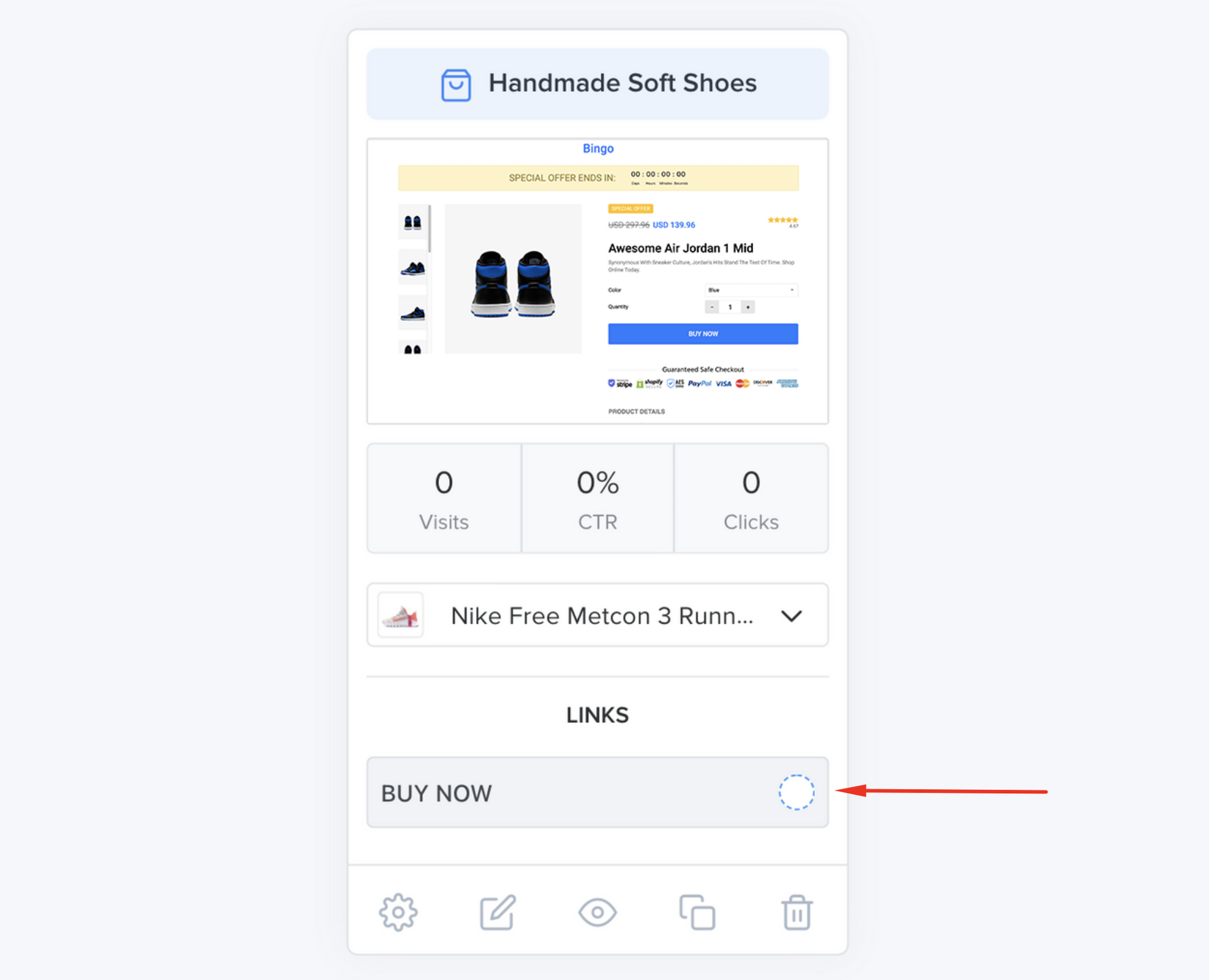
Click and drag the blue circle to create a connection
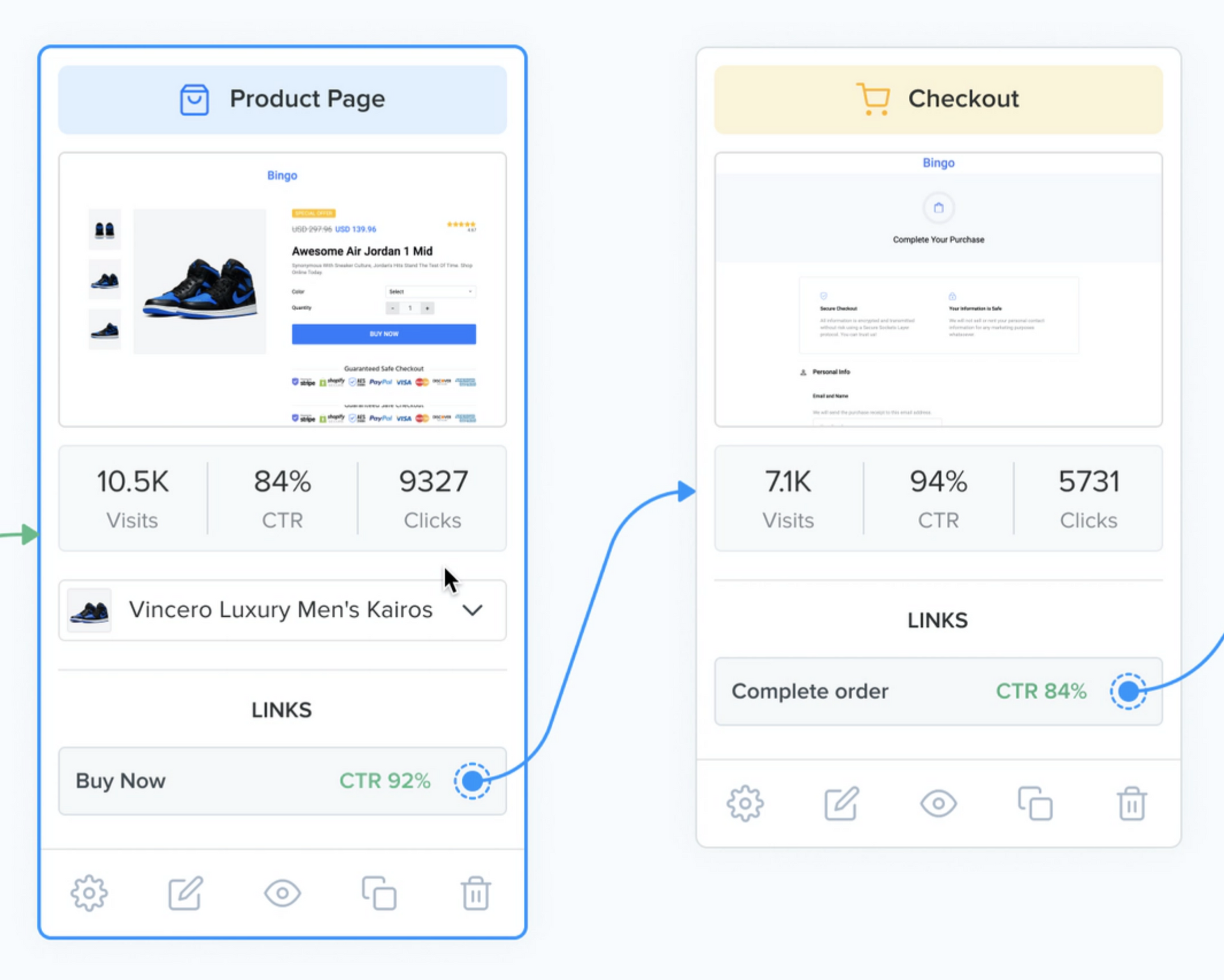
Linked pages
Funnel Styles
Section titled “Funnel Styles”Funnel styles allow you to keep your styling congruent throughout all the funnel pages. By changing a color or size here, it also gets changed on all the page elements that use that same style.
Funnel styles are now in the Styles tab of the page builder.
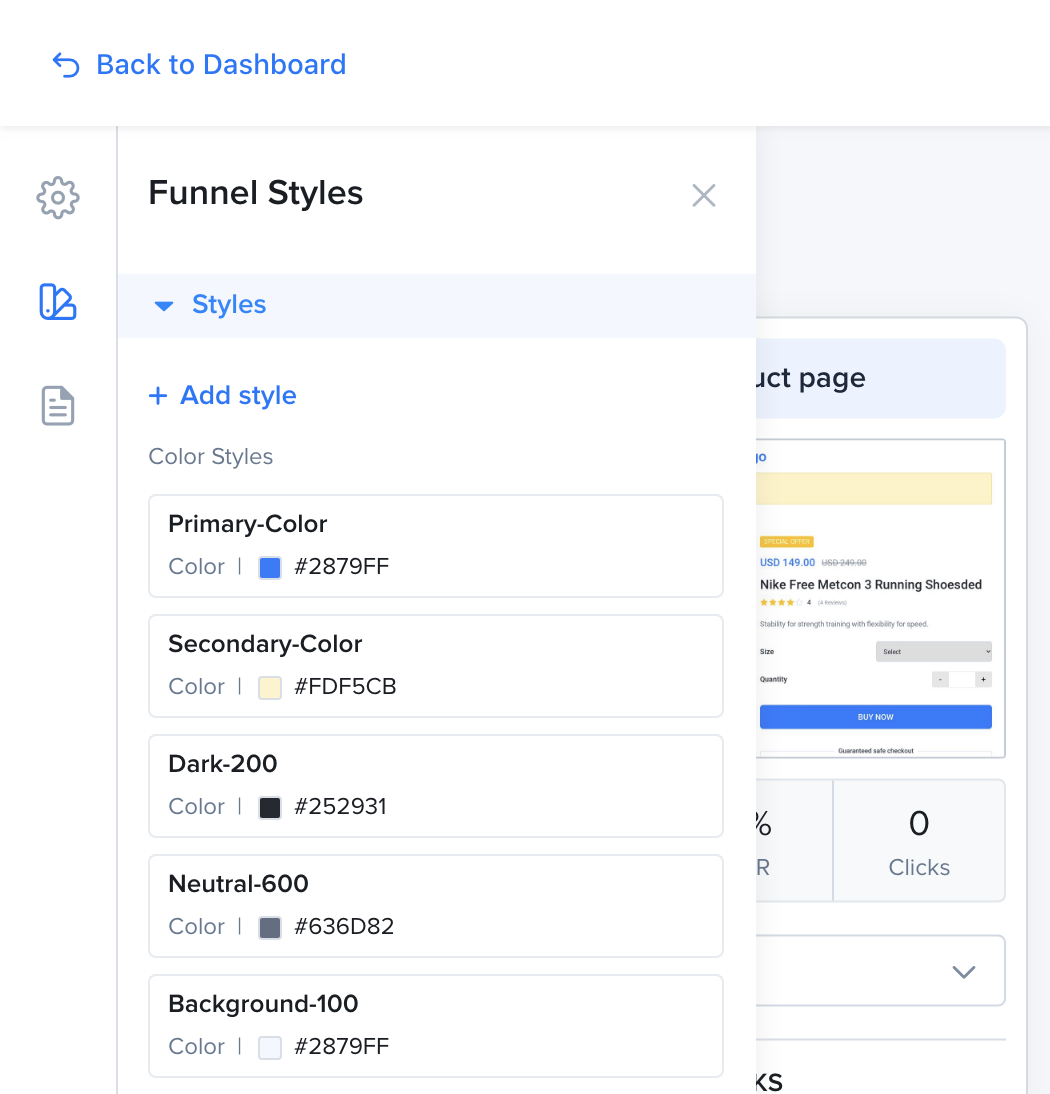
Funnel Styles
Analytics
Section titled “Analytics”On each page on the funnel builder, you can see the page visits, your CTR (click through rate) and number of clicks on that page.
This data helps you find out where your visitors are dropping and pin point areas that need to be fixed in order to improve performance.
This data is related to a time frame that you can change from the Overview tab.
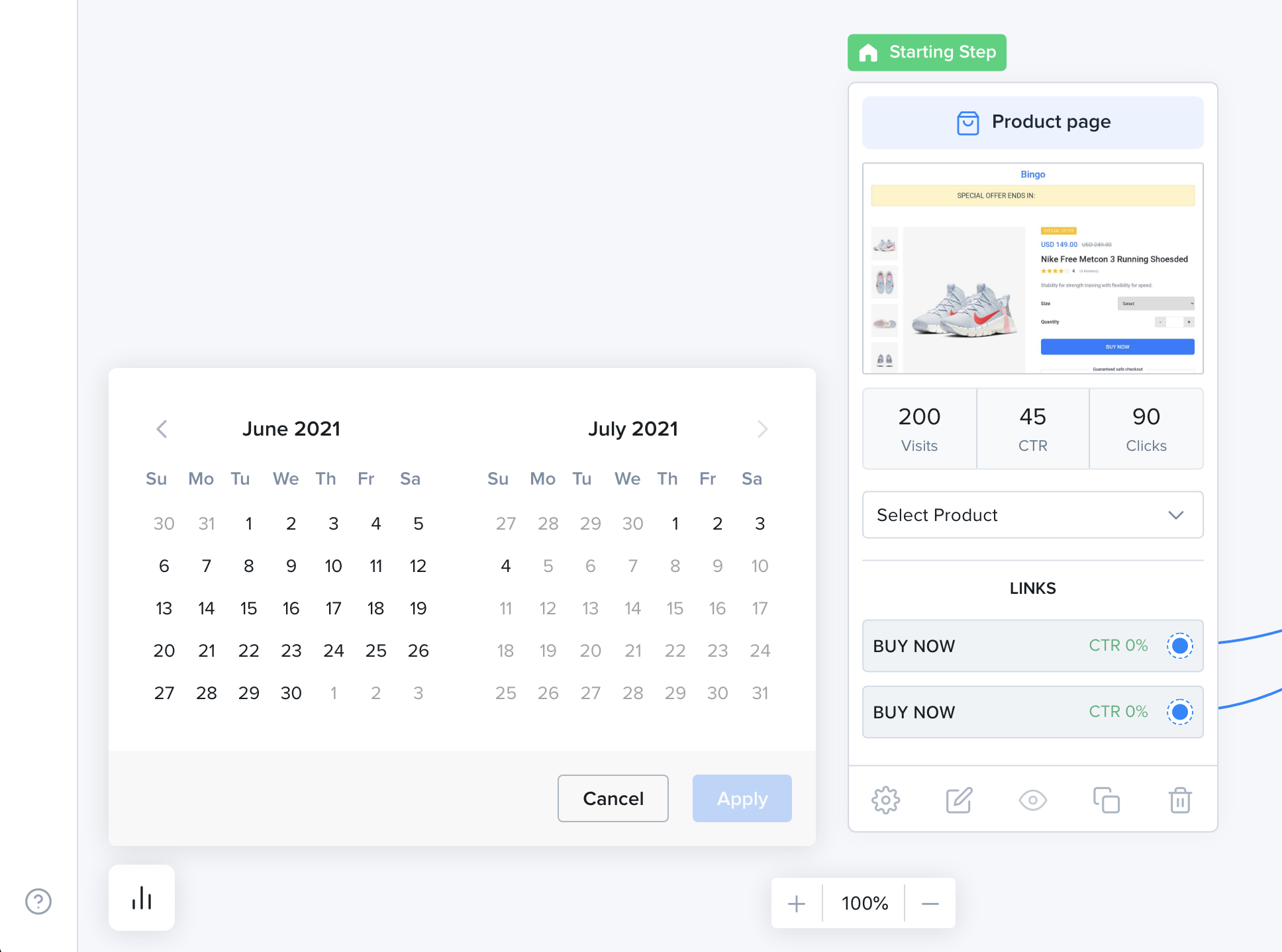
Funnel Builder Analytics
Overview
Section titled “Overview”The Overview tab shows how your funnel performs over a date range. Pick the date range at the top right, and compare it to another period if you like. Click Refresh to load the latest data.
At the top, you can see your Visitors, Orders, Revenue, EPC and CONVERSION RATE. Below, there are SALES and VISITORS charts.
The pages performance table shows each page of your funnel with its visits, CTR, CR, opt-ins and sales. Click a column title to sort by it. Split tests show the stats of each variation. See Split Tests.
Settings
Section titled “Settings”The Settings tab has these sections:
General: yourFunnel name,Funnel URL(and its domain, if you have more than one),Custom scriptsandFavicon. You can also enable address autocomplete, or fire a Lead event instead of a Purchase event.Payment gateways: choose thePayment methodsof your funnel. ClickReorderto change their order.Security: phone validation and One-Time Password (sent by WhatsApp) at checkout.Tracking: enable Google Analytics and Google Tag Manager, and select your Facebook, Snapchat, TikTok, Pinterest and OpenAI pixels and your Google Ads conversion actions.Currency: theFunnel currencyand itsCurrency Format. Learn more about Currencies.
A warning shows on the Settings tab when your funnel has no payment method or no tracking pixel.
Languages
Section titled “Languages”The Languages tab lets you edit the default texts of your funnel in its language. They are grouped in Variables, Errors and Messages. Click Save to keep your changes, or Discard to undo them. Click Reset all fields in a group to go back to its default values.
Click Switch language to change the language of your funnel. Your pages will be translated automatically. Review your translations after the change.
To edit the content of your pages, use the Build & Design tab instead.