Smart Sections
Overview
Section titled “Overview”Smart Sections is an innovative feature that streamlines the process of building and managing sections in your account. With Smart Sections, you can easily reuse sections and elements across multiple pages and funnels, without having to recreate them from scratch each time. Whether you want to maintain consistent branding across your funnels or simply save time, Smart Sections is the perfect tool for achieving your goals. By enabling you to create global sections and smart elements that can be quickly added to any page in any funnel, Smart Sections empowers you to build high-converting funnels faster and more efficiently than ever before.
What is a Global Section?
Section titled “What is a Global Section?”A global section is a section that you can create once and use on any page in any funnel in your account. Global sections can be used to create consistent branding across your funnels and can save you time by allowing you to reuse the same section multiple times without having to recreate it from scratch.
How to Create a Global Section?
Section titled “How to Create a Global Section?”- Go to your page builder
- Select the section that you would like to reuse across your funnels
- Click the “Save Section” icon in the element menu. This icon is available on Section, Popup, Navbar, Cart, Search and Navigation elements.
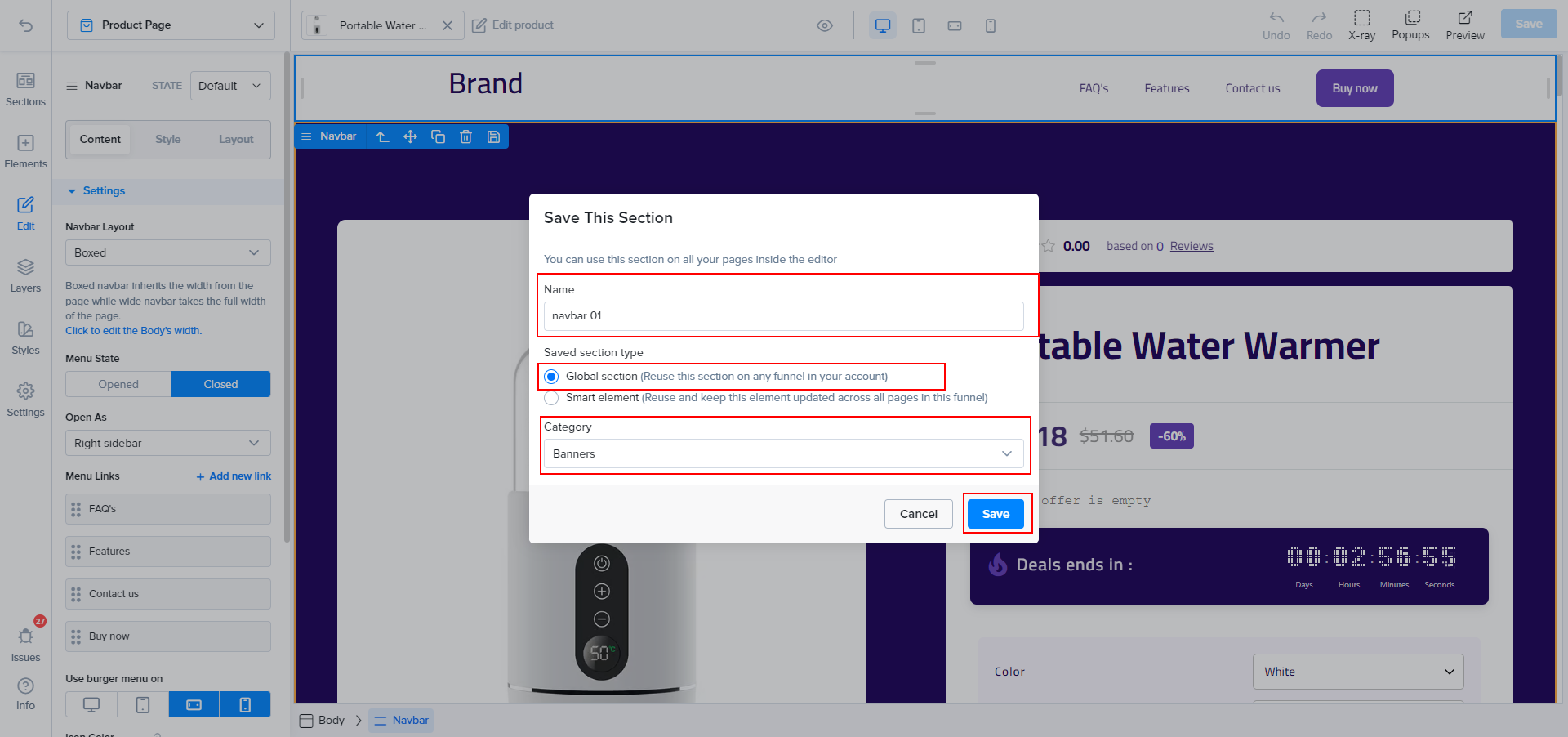
- Enter a “Name”. Under “Saved section type”, choose “Global section”.
- Pick a “Category”, then click “Save”. Your global section is now available to use on any page in any funnel in your account.
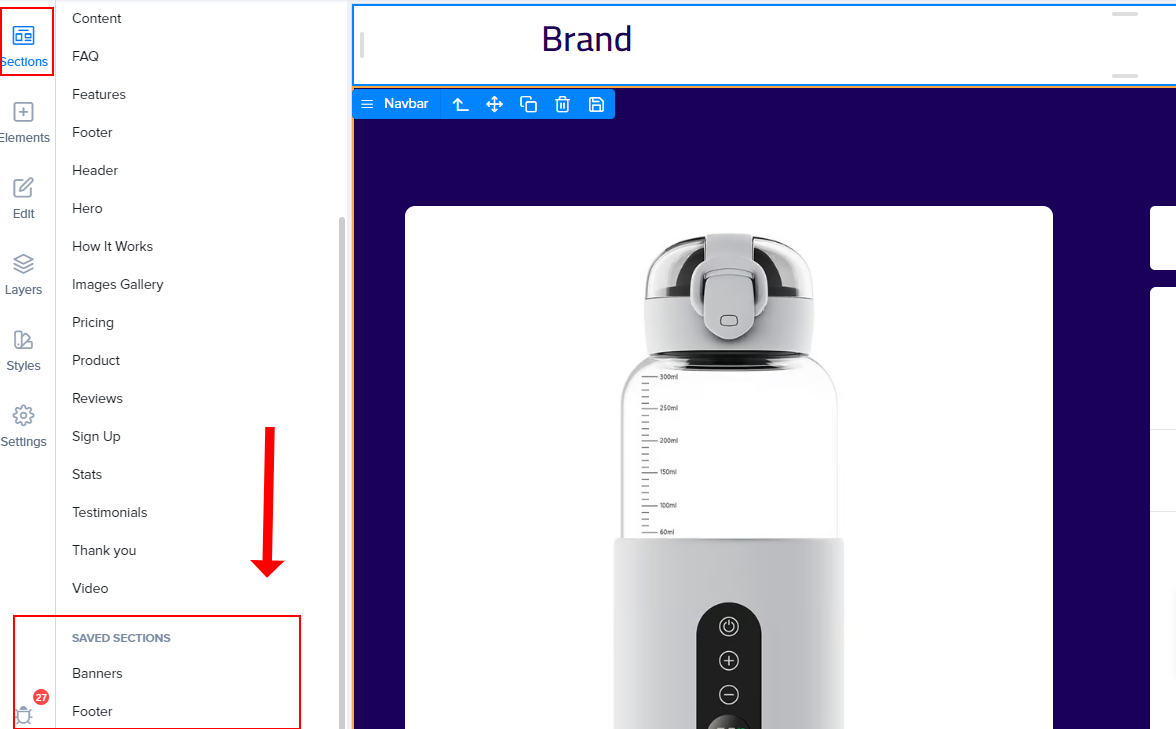
To add a global section to a page, open the Add sidebar and click “Saved sections”. Your sections are under the “Global sections” tab, in the “Saved sections” category.
What is a Smart Element?
Section titled “What is a Smart Element?”A smart element is an element that you can create once and reuse across all the pages in a specific funnel. When you edit a smart element, the change applies to every page that uses it.
How Does it Work?
Section titled “How Does it Work?”Navigate to your page builder where you would like to create the smart element.
- Select the section that you would like to use across the pages of your funnel
- Click the “Save Section” icon in the element menu.
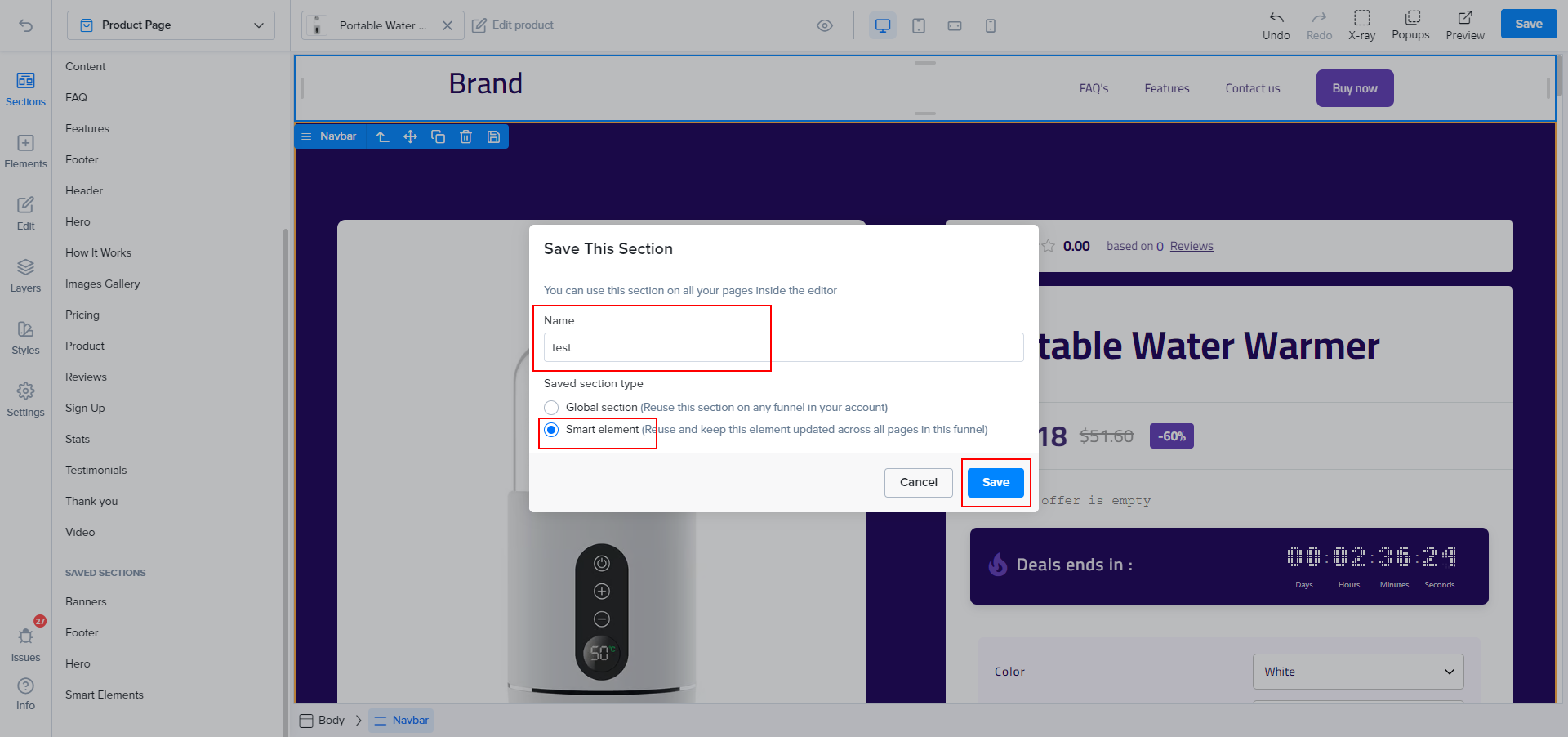
- Enter a “Name”. Under “Saved section type”, choose “Smart element”.
- Click “Save”. Your smart element is now available to use on any page in the same funnel.
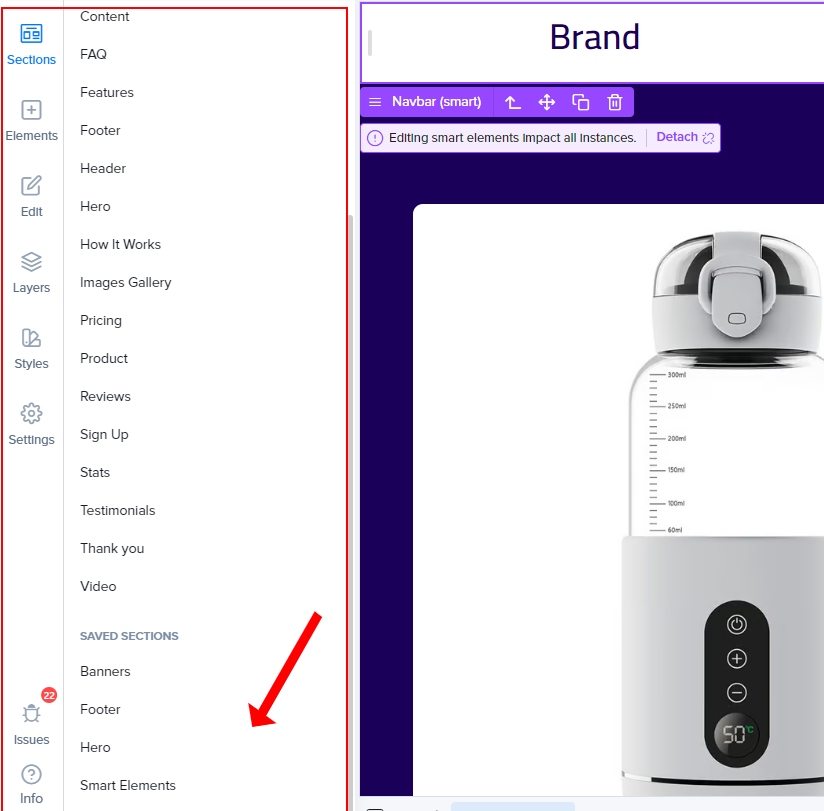
To add a smart element to a page, follow these steps:
- Open the
Addsidebar and click “Saved sections”. - Open the “Smart sections” tab.
- Drag the smart element you want and drop it inside your page.
Detaching a Smart Element
Section titled “Detaching a Smart Element”When you select a smart element, the builder shows “Editing smart elements impact all instances.” Click “Detach” to turn it into a normal element. After that, your changes only apply to this page.
Watch this video tutorial for more details:

Conclusion
Section titled “Conclusion”Smart Sections is a powerful feature that allows you to easily create global sections and smart elements, saving you time and improving consistency across your funnels. Use these tools to streamline your funnel building process and create a cohesive branding experience for your audience.