Pinterest Conversion API (CAPI)
Bypass browser limitations or ad blockers and get more accurate data to ensure that your ads reach their target audience.
What is it?
Section titled “What is it?”Pinterest’s Conversions API (CAPI) enables advertisers to send conversion events directly from their servers to Pinterest’s servers, bypassing browser constraints and ad blockers. This direct integration allows for more reliable data collection on website traffic and conversions, helping optimize ad campaigns for better targeting and performance
- Note: Please be advised that your Lightfunnels statistics and Pinterest’s data might not match up. Tracking platforms frequently employ diverse technologies and methodologies, which results in disparities.
How to configure Pinterest CAPI with Lightfunnels ?
Section titled “How to configure Pinterest CAPI with Lightfunnels ?”Step 1
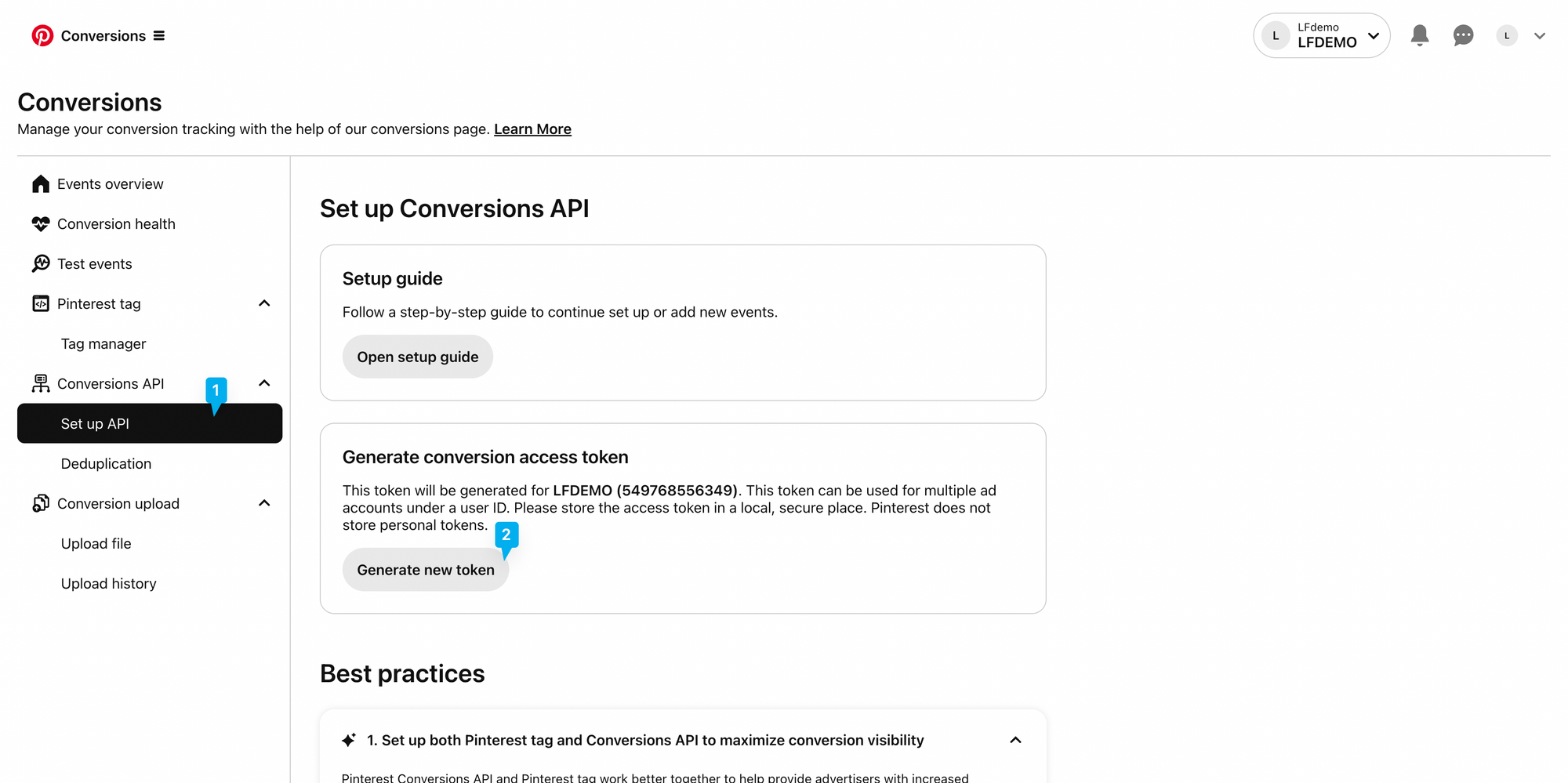
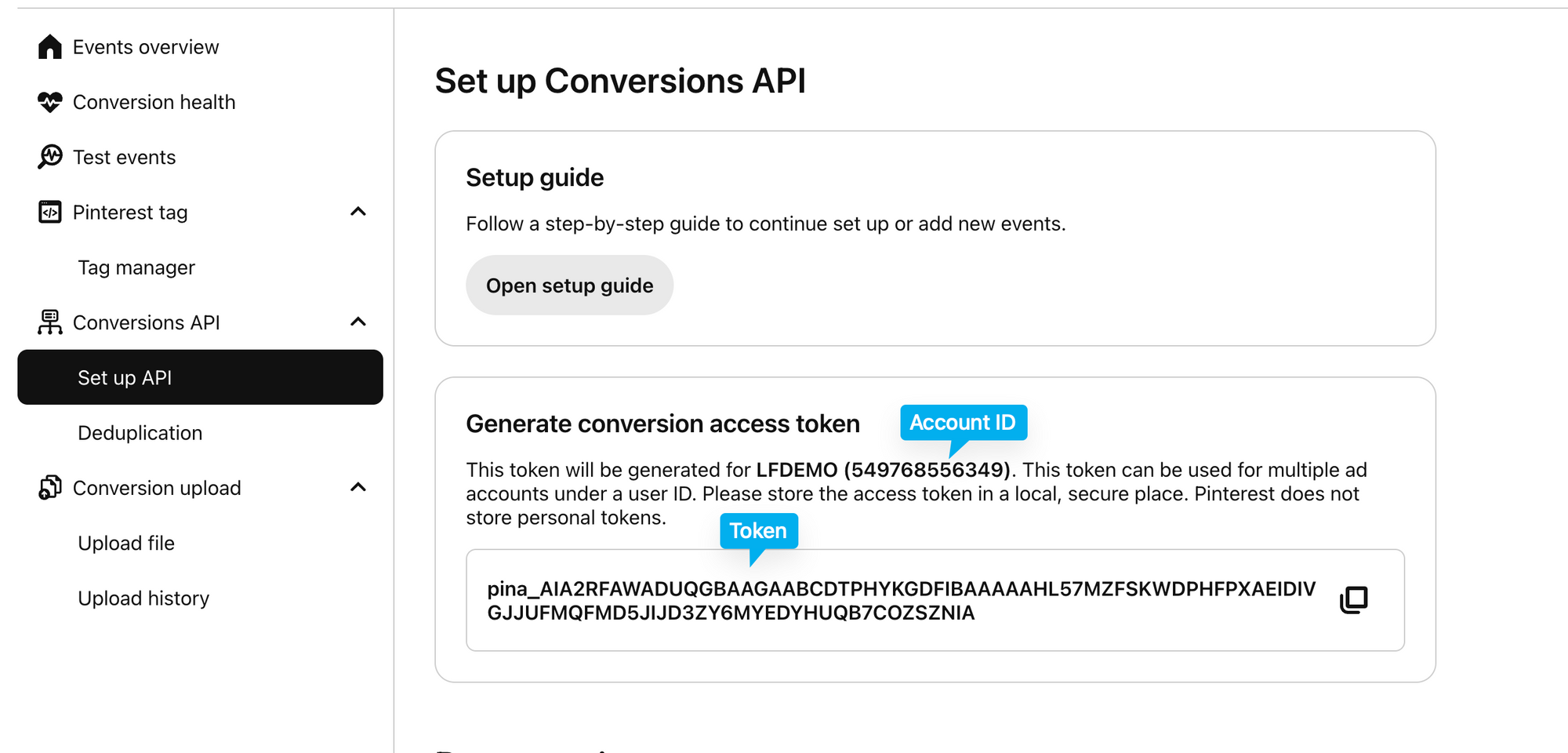
Section titled “Step 1”Go to Conversions tab in your Pinterest dashboard > Set up API > Generate new token
Step 2
Section titled “Step 2”Log in to your Lightfunnels account
Go to settings >> tracking
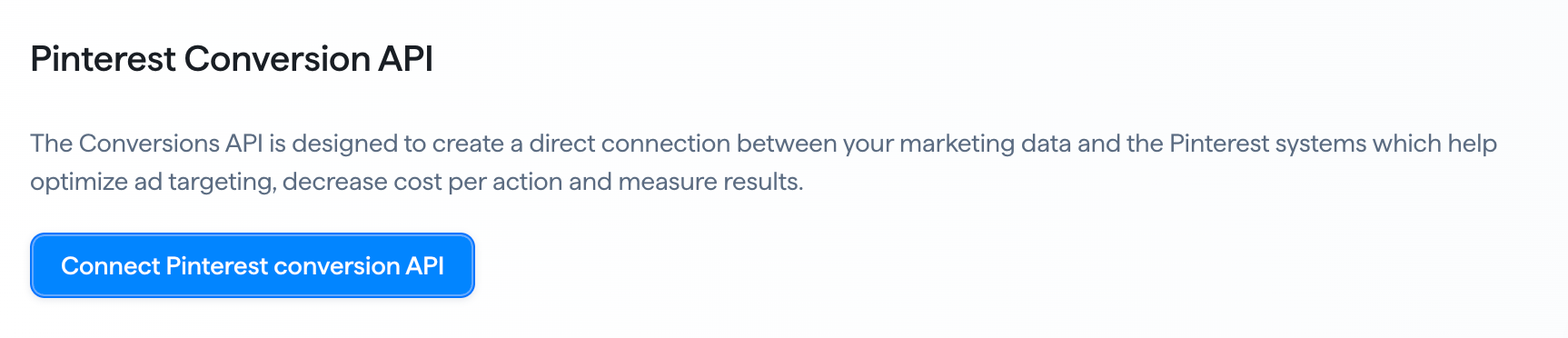
Click Manage on the Pinterest card, then click on “Connect Pinterest conversion API”
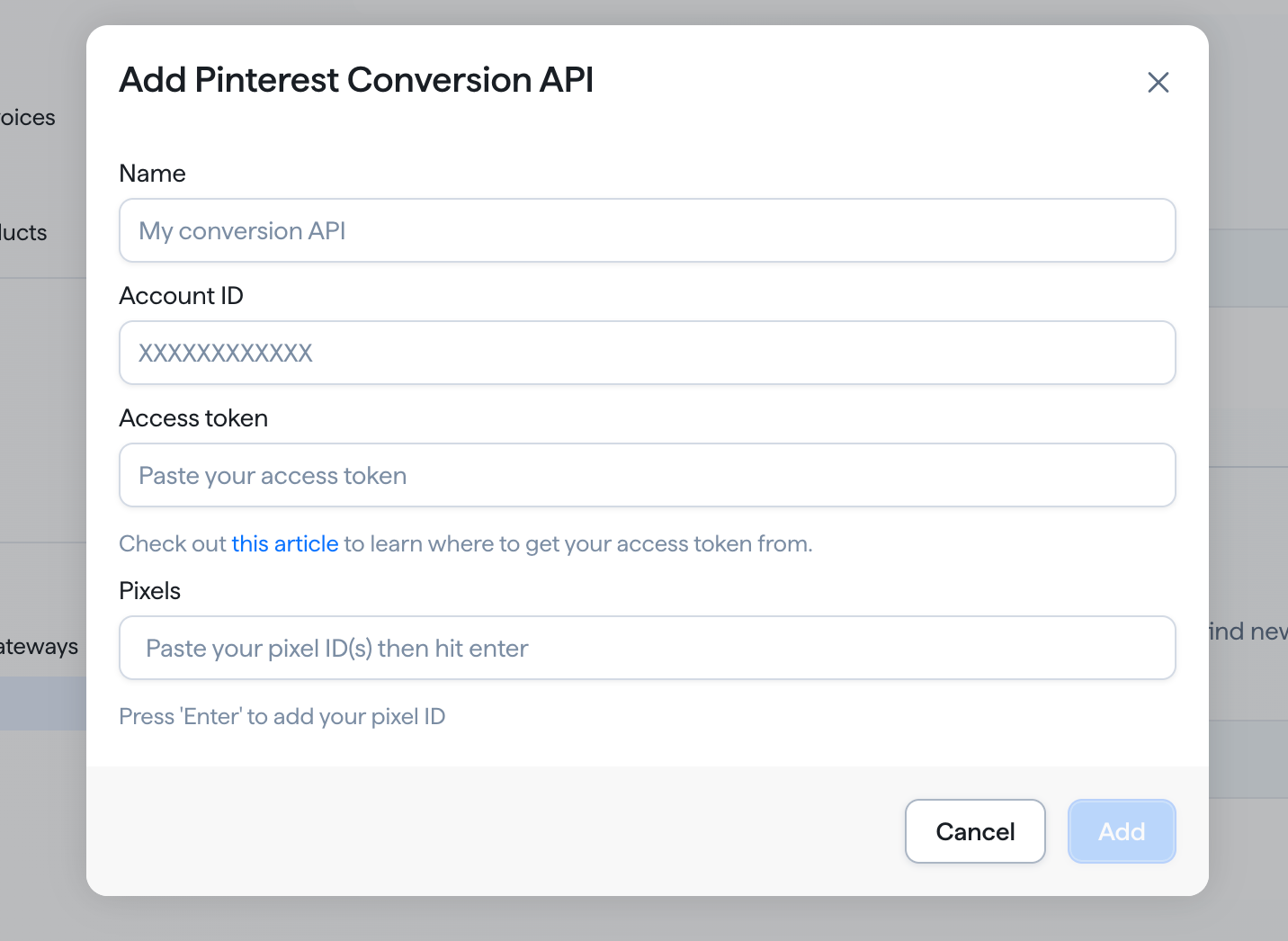
Enter a Name for this connection.
Add your Pinterest Account ID.
Paste the token in Access token.
In Pixels, paste your pixel ID(s) and press Enter after each one.
Click on Add to complete the setup.
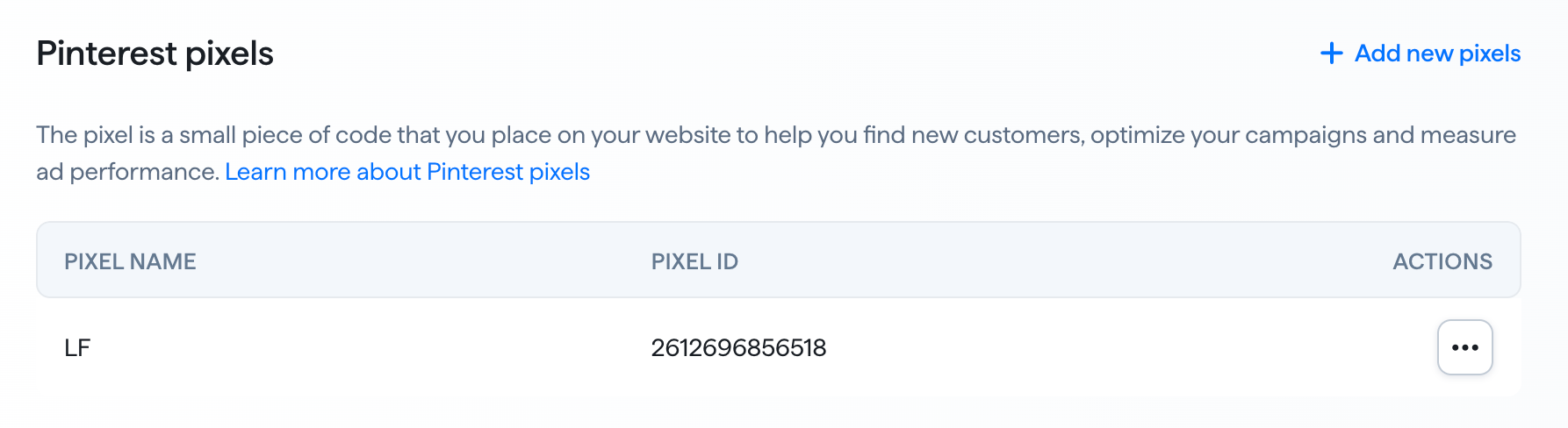
- Note: Please make sure you have your pixel added in the Pinterest pixels section here, as this is what you will use in your Funnels/Stores settings.
- Note: If Pinterest rejects your access token (for example, because it was revoked or expired), LightFunnels removes the Conversion API connection automatically. If your connection disappears from the list, generate a new token and connect again.
Test CAPI events (optional)
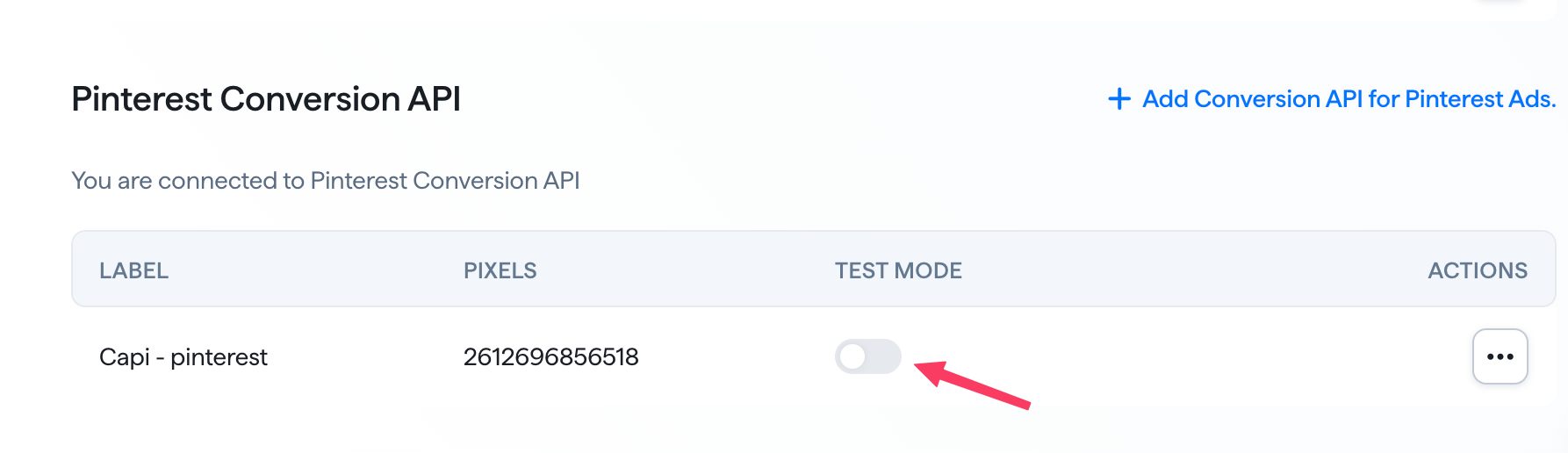
Section titled “Test CAPI events (optional)”Once connected, your connection is listed with its label, pixels and a Test mode toggle. Turn on Test mode to verify event tracking before going live, without affecting your real reports. Turn it off when you are done testing. To remove a connection, open the actions menu next to it and click Disconnect.
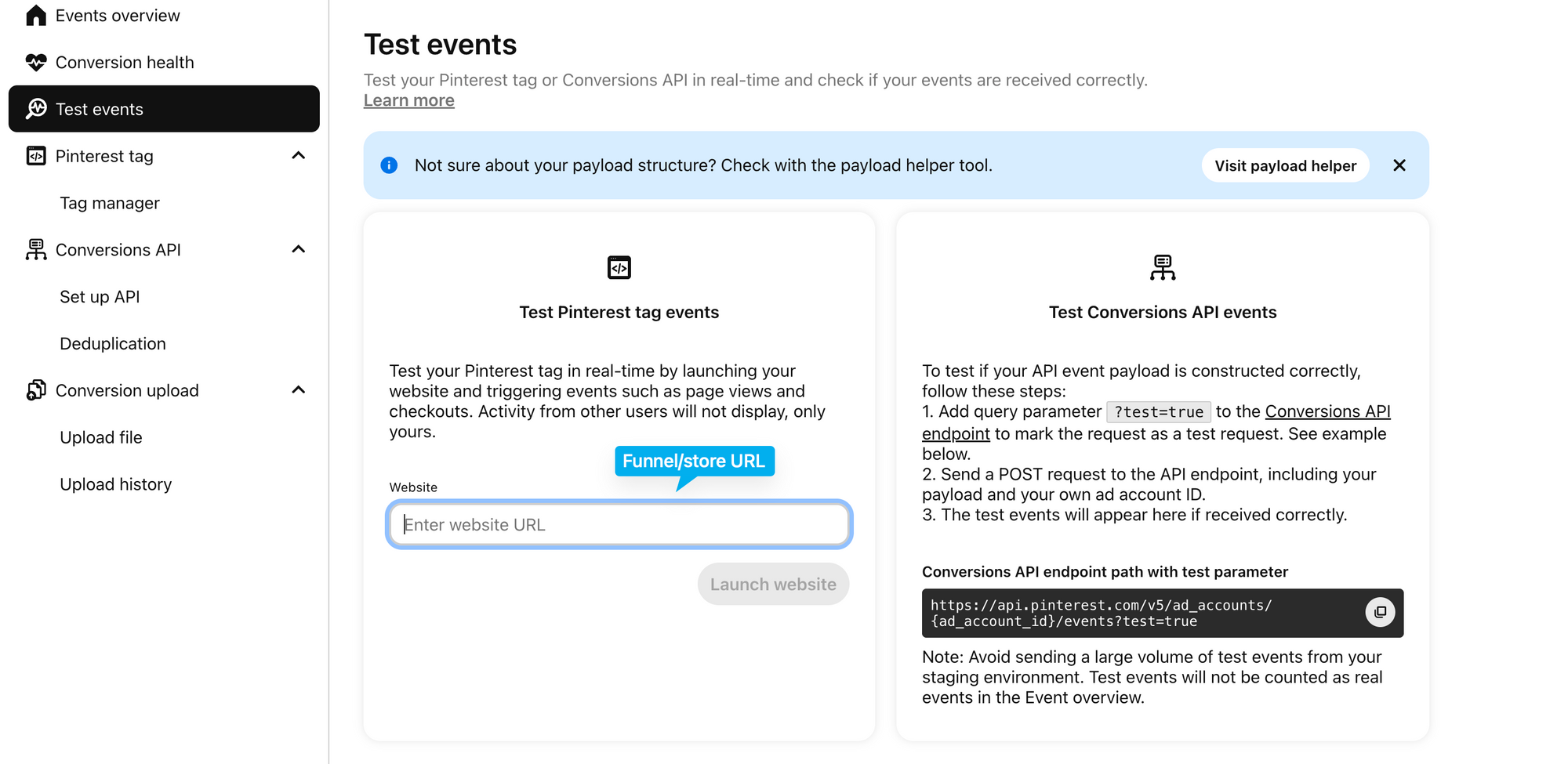
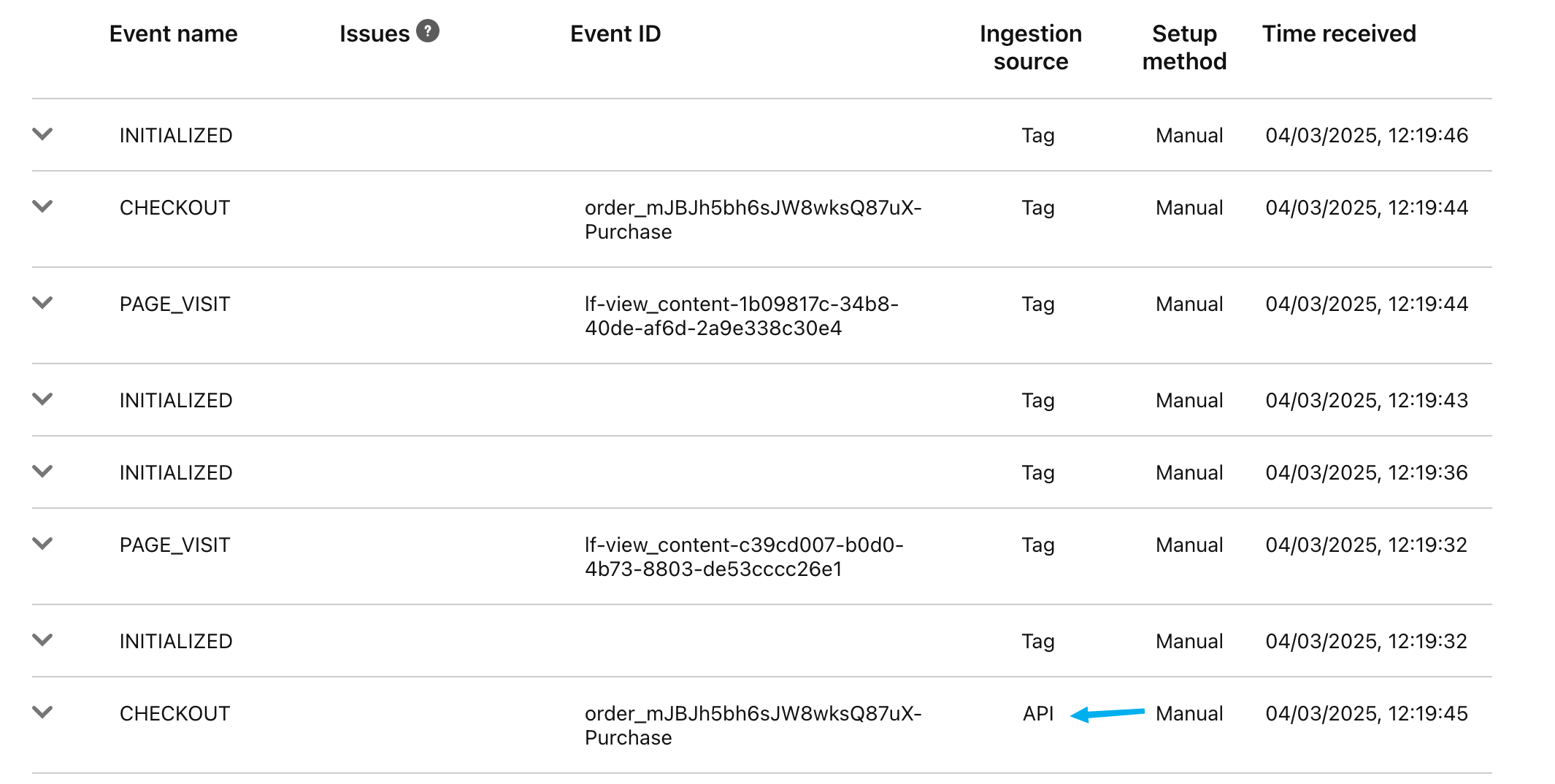
After completing the configuration steps, test your integration by browsing your funnel/store. As you navigate through your site, events will be fired. You should see these events categorized as “API” integration source, confirming that your Pinterest CAPI setup is working as expected.