Google Ads
What is it?
Section titled “What is it?”Google Ads is Google’s advertising platform that displays your ads on Google Search, YouTube, and partner sites. This helps you connect with potential customers when they’re looking for what you offer.
How to configure Google ads with Lightfunnels?
Section titled “How to configure Google ads with Lightfunnels?”Setting up Google Ads in Lightfunnels takes two parts: your Google Ads Tag ID, then one or more conversion actions.
Step 1: Add your Google Ads Tag ID
Section titled “Step 1: Add your Google Ads Tag ID”- Log in to your Lightfunnels account and go to settings >> tracking.
- Click
Manageon the Google Ads card. - Paste your tag ID (format
AW-XXXXXXXXX) in the Google Ads Tag ID field and save your changes.
Step 2: Create a conversion action in Google Ads
Section titled “Step 2: Create a conversion action in Google Ads”Sign in to your Google Ads account: Go to https://ads.google.com/ and log in with your Google account credentials.
Navigate to “Goals”:
- In the left-hand navigation menu, click on “Goals”.
Go to “Conversions”:
- Under the “Goals” section, click on “Summary”.
- On the “Conversion actions” card, click on “New conversion action”.
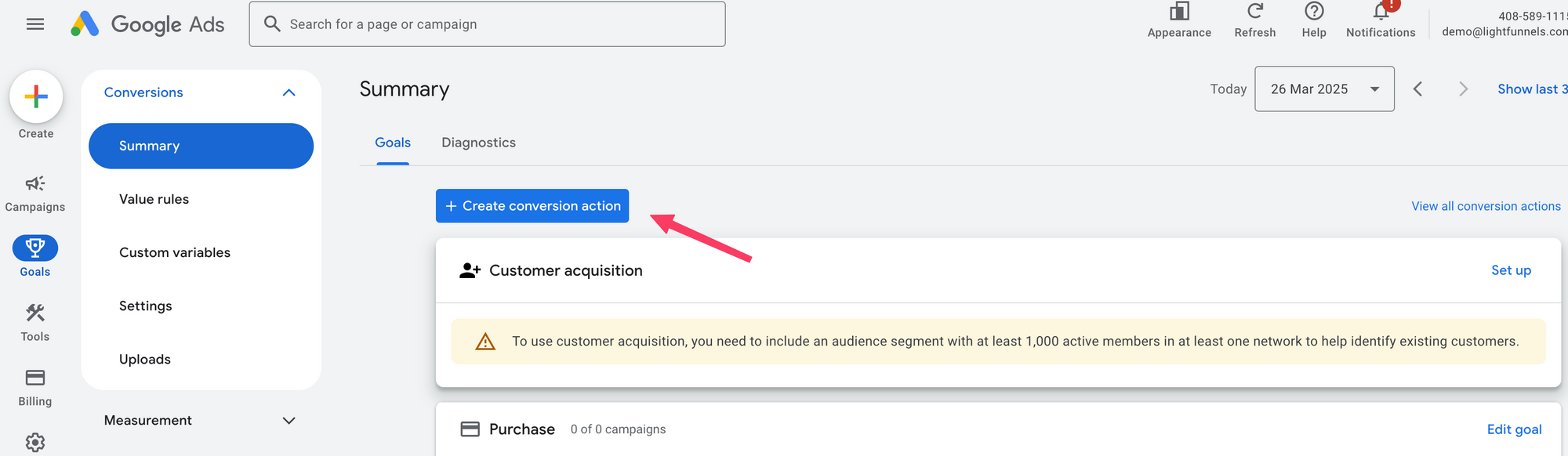
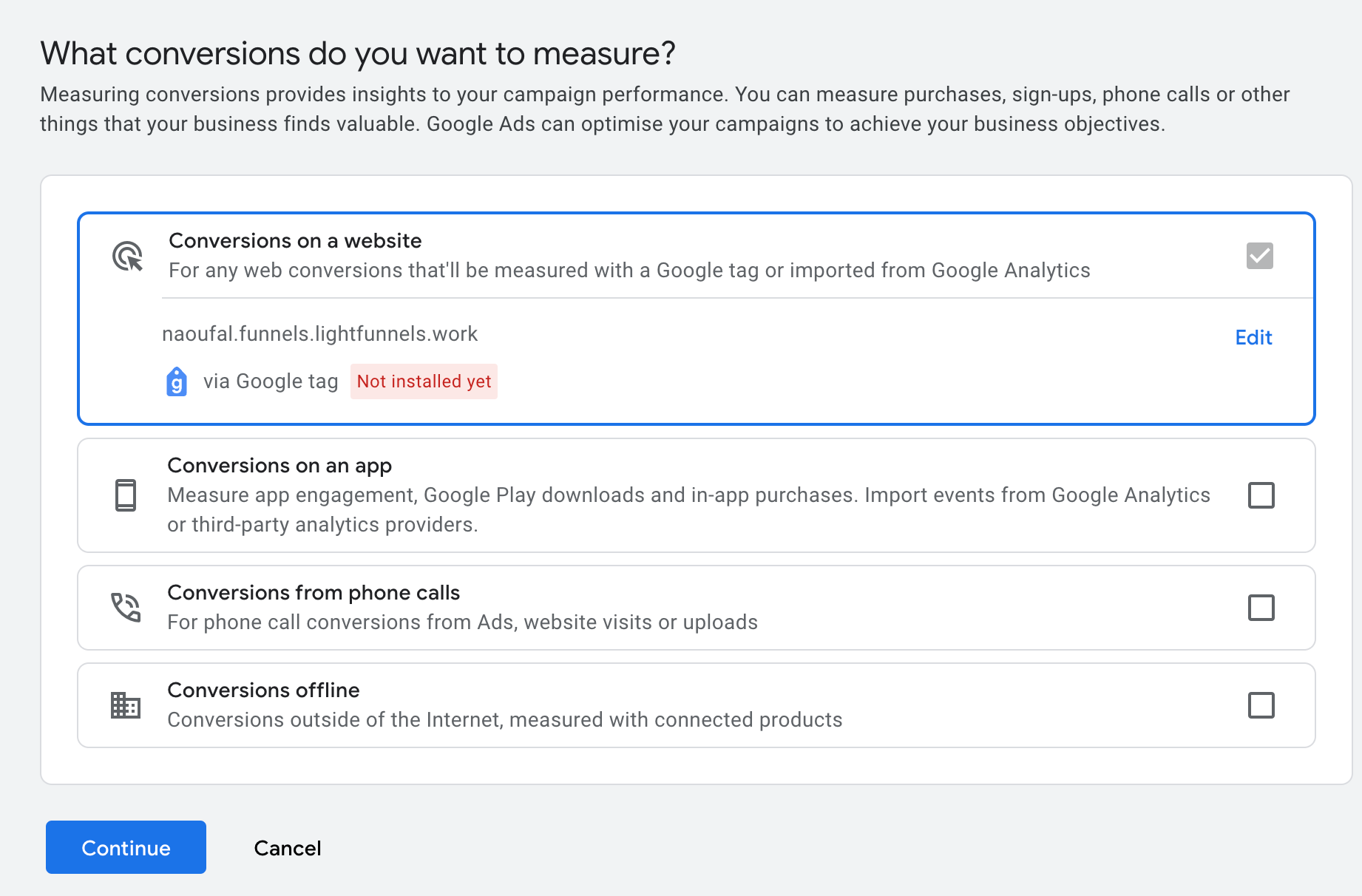
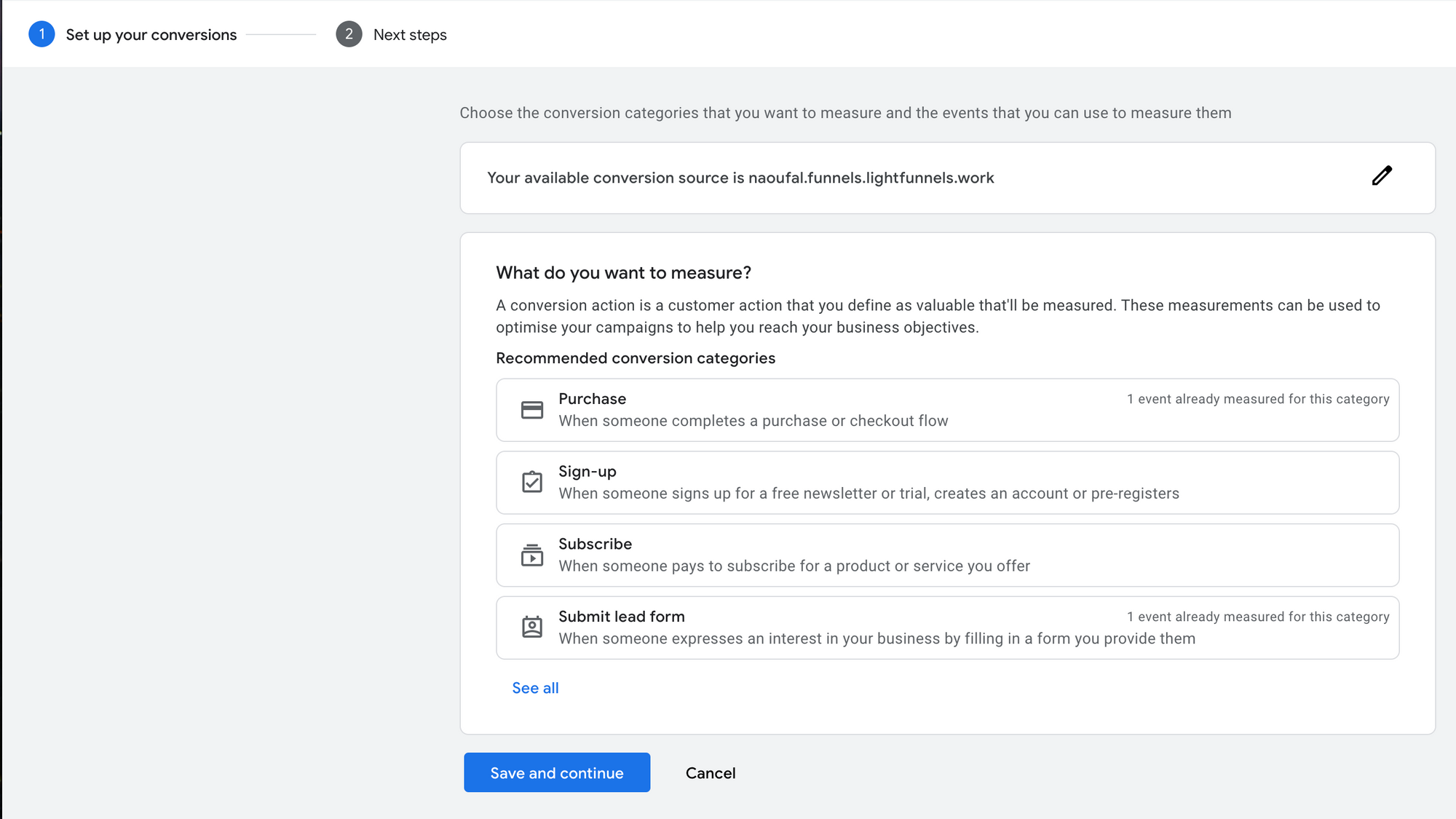
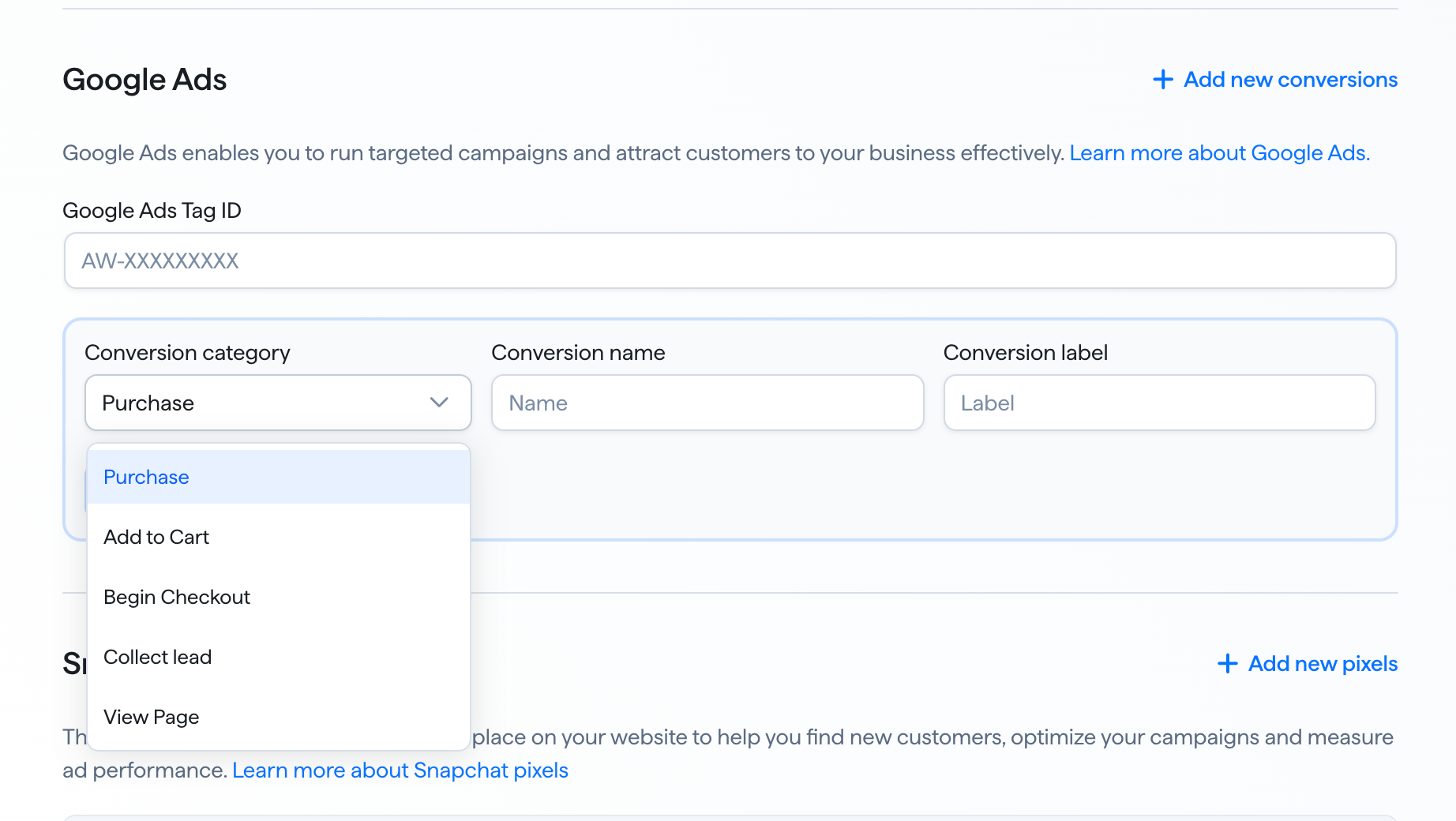
Choose a category that best describes your conversion based on the categories Lightfunnels supports:
| Conversion category | Lightfunnels event |
|---|---|
| Purchase | Purchase |
| Add to Cart | Add To Cart |
| Begin Checkout | Initiate checkout |
| Collect lead | Lead |
| View Page | View content |
Copy your conversion label.
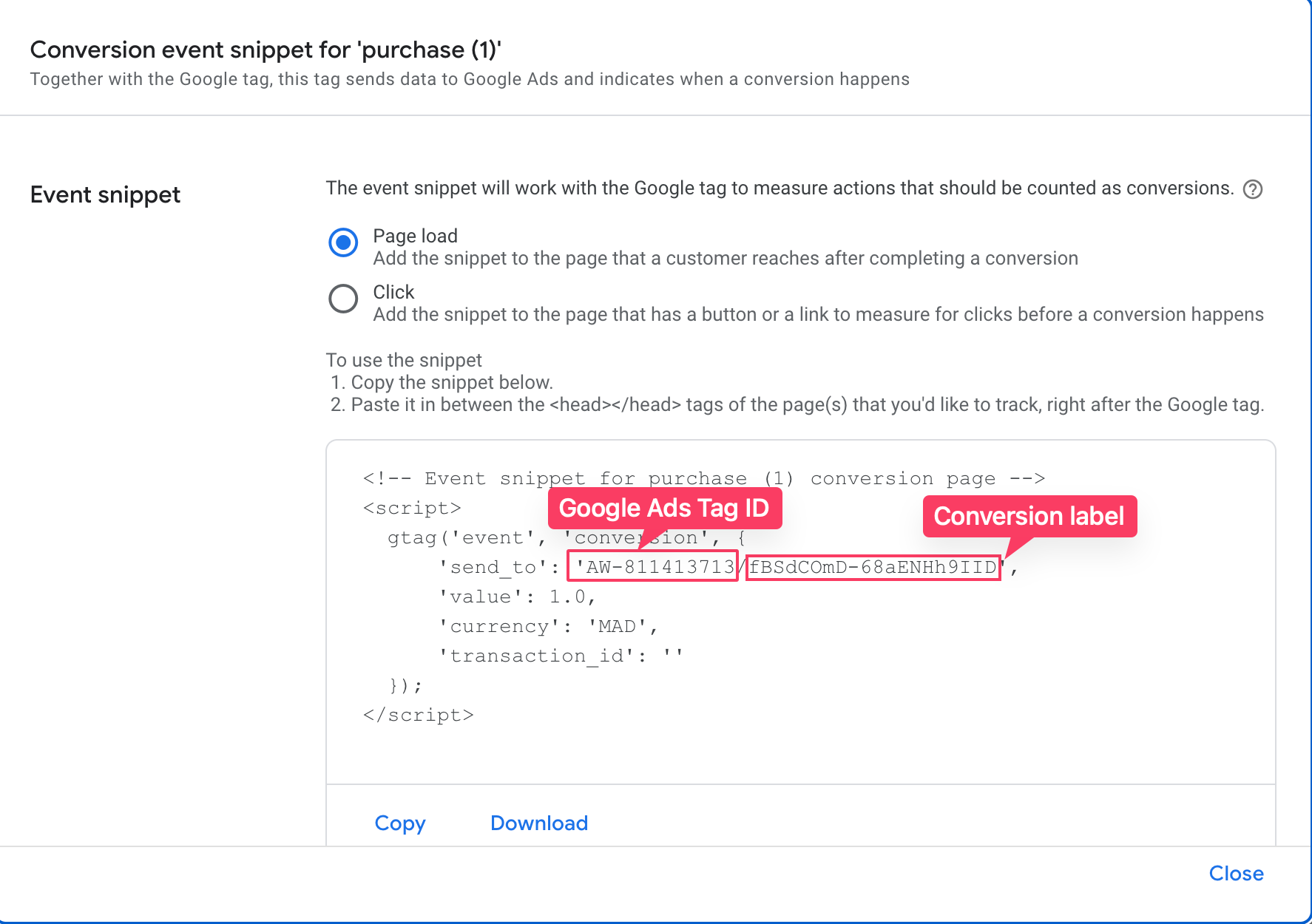
Step 3: Add the conversion action in Lightfunnels
Section titled “Step 3: Add the conversion action in Lightfunnels”- On the Google Ads card, under Google Ads conversion actions, click
Add new conversions. - Select the Conversion category.
- Enter a Conversion name.
- Paste the Conversion label you copied from Google Ads.
- Click
Add.
Repeat for each conversion action you want to track. You can edit or delete conversion actions from the list at any time.