Adding a Product
Before creating an e-commerce funnel, you need to have some products to sell.
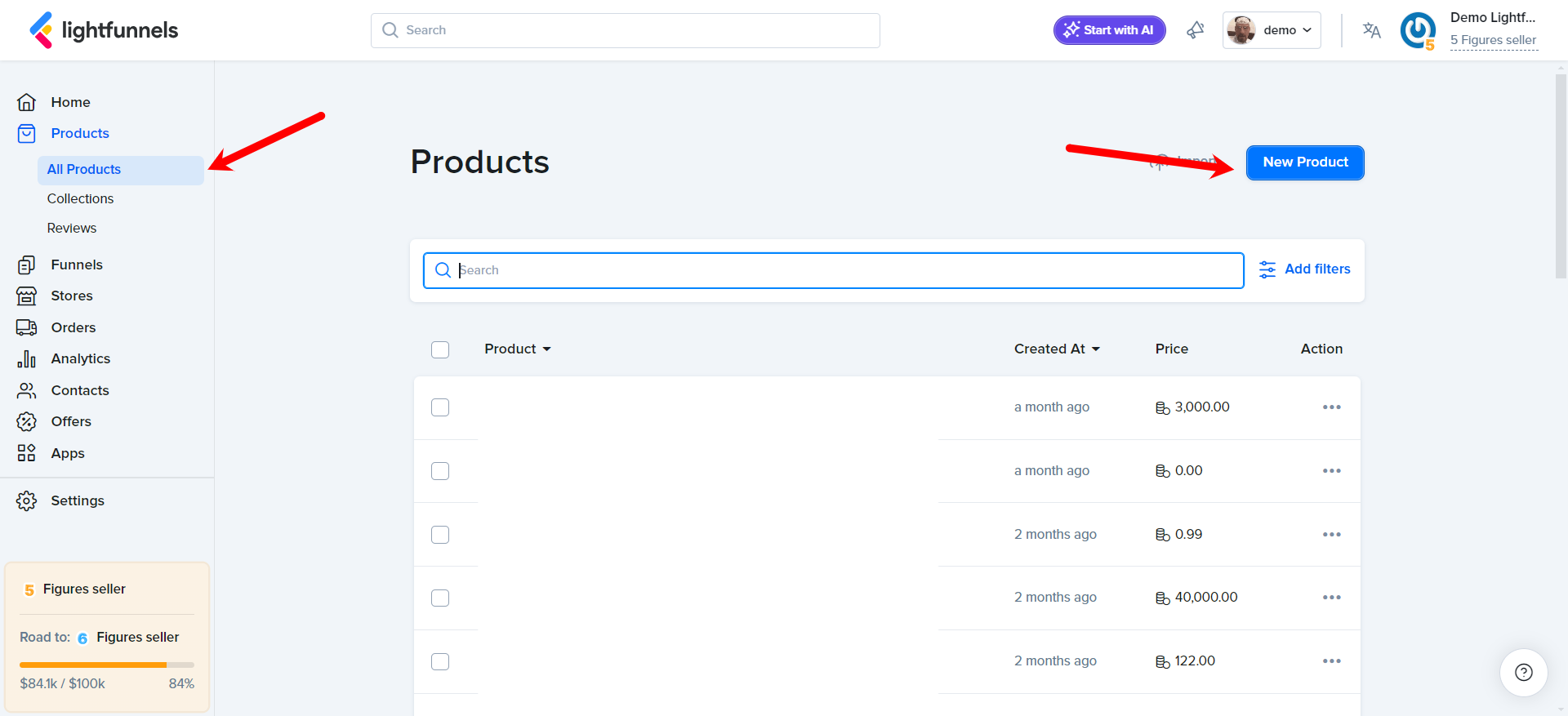
To create a product, click Products on the sidebar, then click New Product.
Here you can start filling your product information like the title, description and images.
Although you are not required to fill in all the fields, the more information you fill, the more complete your landing pages will look.
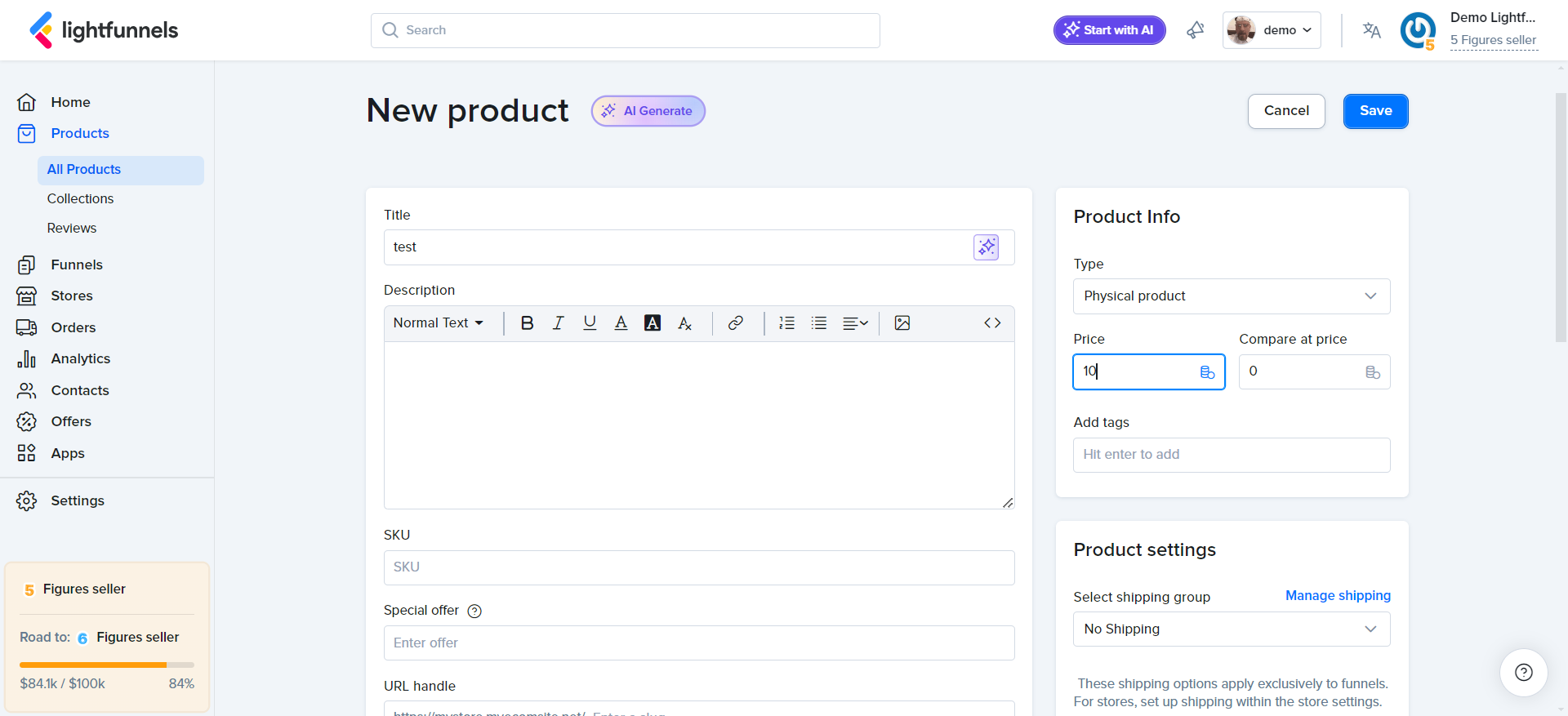
Product Properties
Section titled “Product Properties”Below is a description of each product property
- Title - The name for your product as you want your customers to see it.
- Description - The description for your product. This area uses the rich text editor so that you can format your text. Describe your products in detail to inform and persuade your potential customers. If you are a reseller, don’t use a manufacturer’s exact description, because you want your products to be unique to search engines.
- SKU - A unique identifier for your product to help with inventory tracking. If your product has variants, you manage SKUs per variant in the Variants section.
- Special offer - A small text that typically appears under the product title and above the variant selector. Use it to tell visitors about an offer you are running or something important.
- URL handle - The URL slug for this product. Short, descriptive URLs improve search engine visibility.
- Images - Add some images to show your customers what the product looks like.
- Type - Whether this is a
Physical productor aDigital product. See Digital Products below. - Billing model - Whether the customer pays once or on a recurring basis. See Billing Model below.
- Price - The base price of your product. This is what customers will pay.
- Compare at price - The original price. Use it to show a discount or price reduction.
- Tags - Add tags to your products to be able to easily find and group similar products later.
- Variants - If your product has more than one variant options like sizes or colors, add the different options here to generate different variants.
- Features - Add images and descriptions for the key features of your product.
- Testimonials - A list of testimonials from your previous customer or people who used your product.
- FAQ - Answers to questions your customers may have about your product, offer or shipping.
Note: You can generate your product CMS with ease using AI. For more information, visit AI Implementation in Lightfunnels.
Digital Products
Section titled “Digital Products”When you set the Type to Digital product, a Digital delivery section appears. It has two tabs:
- Downloadable Files - Click
Add filesto add the files your customers can download after their purchase. By default,Download links never expire. Uncheck it to set the number of days after which the download link expires. - License Keys - Each customer receives a unique license key after their purchase. Create a key group or select an existing group. Add keys manually (one key per line) or click
Import from CSV.
If your product has variants, access must be set for each variant. In the Variants table, click Add digital access (or Manage access) on a variant to add its files and keys.
Note: If your product uses the old digital file system, click Switch to the new digital system to use multiple files, license keys and expiry settings per variant.
Billing Model
Section titled “Billing Model”Choose how you want to charge for this product:
- One-time payment - The customer pays once.
- Recurring payment - The customer pays on a schedule (a subscription).
- One-time or recurring payments - The customer can choose between both.
For recurring payments, you set up one or more subscription offers. Each offer has:
- Title and Offer text - For example “Best value” and “Save 20% + free shipping”.
- Repeat payment every - How often the customer is charged, in days, months or years.
- Billing cycle -
Never expires, orExpires aftera number of payments. - Subscription has free trial - Offer a free trial period, in days or months, before the first payment.
- Discount - Give subscribers a percentage or fixed discount. You can apply it only for a set number of payments.
Click Add new subscription offer to add another offer. Learn more on Subscriptions.
Stores & Funnels
Section titled “Stores & Funnels”Once your product is saved, the Stores & Funnels section shows the stores and funnels where this product is used. If it’s not used anywhere yet, click Start Selling. You can then push the product to an existing store, create a new store, or use it in a sales funnel.
Stock Control
Section titled “Stock Control”Lightfunnels’ stock management allows store owners to keep track of product inventory in real-time. It ensures that products are automatically updated as orders are placed, preventing overselling…Read more
Custom Data
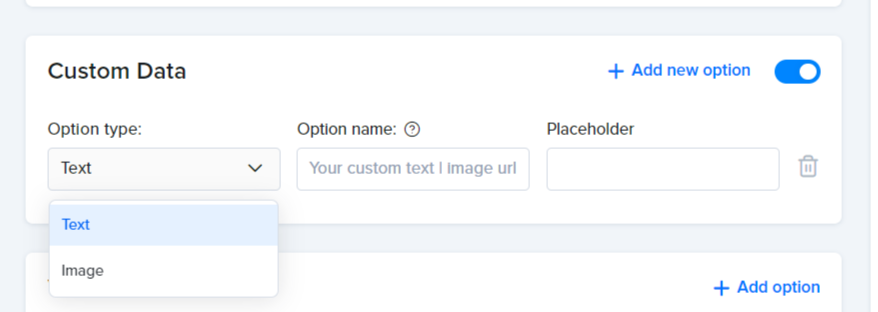
Section titled “Custom Data”In Lightfunnels, you can enable the custom data feature on your product pages, allowing customers to personalize their items. This option provides two main customization choices:
- Text Input: Customers can enter custom text, such as names, messages, or any other information they’d like to appear on the product.
- Image Upload: Customers can upload an image file from their device, which could be a logo, photo, or design they’d like to apply to the product.
Once they submit the customization, this data is collected with their order, allowing you to produce and deliver personalized products tailored to their preferences.
Variants
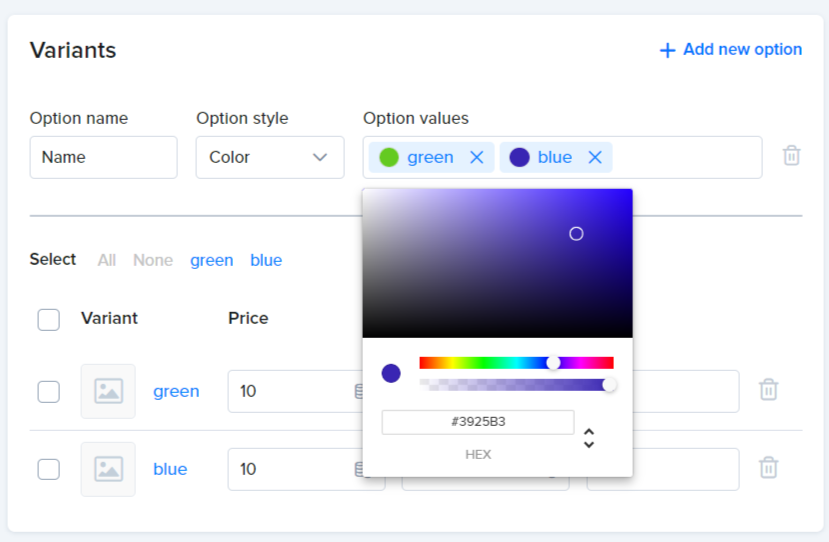
Section titled “Variants”Variant Types:
- Text Variants: Include options such as size names (e.g., small, medium, large) or any other descriptive text.
- Image Variants: Allow customers to select different images that represent the variants visually.
- Color Variants: Enable customers to choose from various colors, which can be displayed as swatches or labels.
Pricing:
- Set specific prices for each variant, along with a compare price to showcase any discounts or promotions.
SKUs and Stock Management:
- Assign unique SKUs to each variant for effective inventory tracking.
- Limit stock levels for each variant to ensure accurate management of available products.
Order Bump
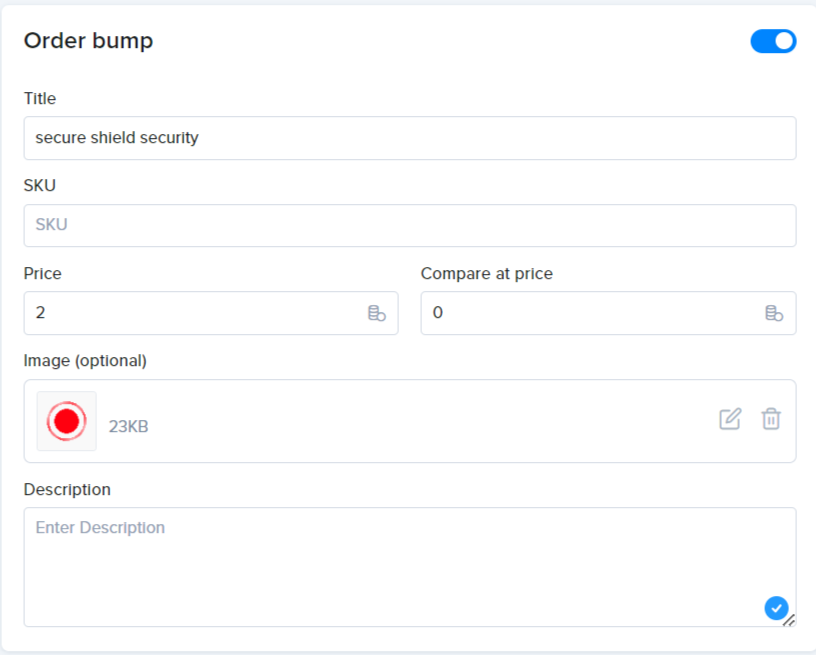
Section titled “Order Bump”An order bump is a marketing technique used in e-commerce where customers are offered an additional product at the checkout stage for a discounted price. This is typically a complementary item related to their main purchase, encouraging customers to add it to their order with minimal effort. To implement order bumps, you should:
- Select Relevant Products: Choose items that complement the main product.
- Create a Compelling Offer: Highlight the discount or added value.
- Position Strategically: Place the order bump on the checkout page for visibility.
Shipping
Section titled “Shipping”Lightfunnels allows you to set shipping options for funnels. You can include shipping costs in your pricing to increase your sales revenue, or offer free shipping to enhance customer appeal. You can customize shipping rates based on regions or product types…Read more
Price Bundles
Section titled “Price Bundles”Price bundles are an effective e-commerce strategy that allows businesses to offer multiple products or services at a combined price. This approach not only enhances customer satisfaction by providing perceived value but also helps increase sales and average order value (AOV)… Read more