Facebook Conversion API (CAPI)
Bypass browser limitations or ad blockers and get more accurate data to ensure that your ads reach their target audience.
What is it?
Section titled “What is it?”Facebook’s CAPI allows you to send pixel events directly to servers, bypassing browser limitations or ad blockers. This means that you can get more accurate data on your website’s traffic and conversions, and create better ads that are more likely to reach your target audience.
- Note: Please be advised that your Lightfunnels statistics and Facebook data might not match up. Tracking platforms frequently employ diverse technologies and methodologies, which results in disparities.
How to configure CAPI with Lightfunnels?
Section titled “How to configure CAPI with Lightfunnels?”Step 1
Section titled “Step 1”Go to Events Manager
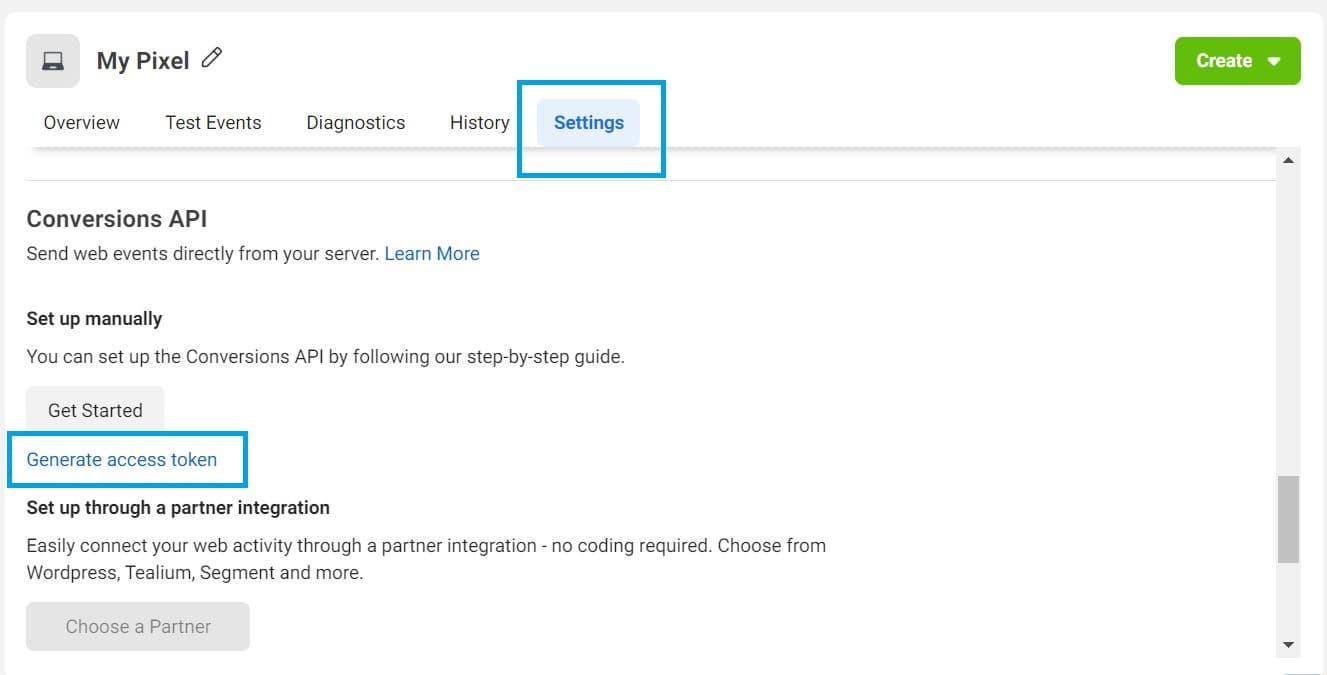
Select the pixel you want to configure and click on Settings.
Scroll down to “Conversion API” and click on “Generate Access Token”.
Copy the token.
Step 2
Section titled “Step 2”Log in to your Lightfunnels account
Go to settings >> tracking
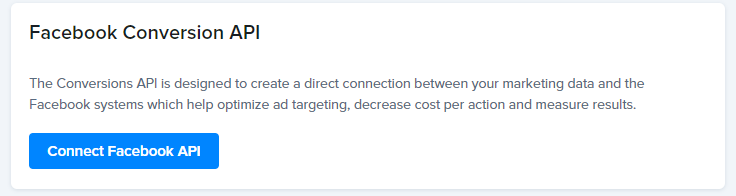
Click Manage on the Facebook card, then click on “Connect Facebook API”
In the “Add Facebook Conversion API” window:
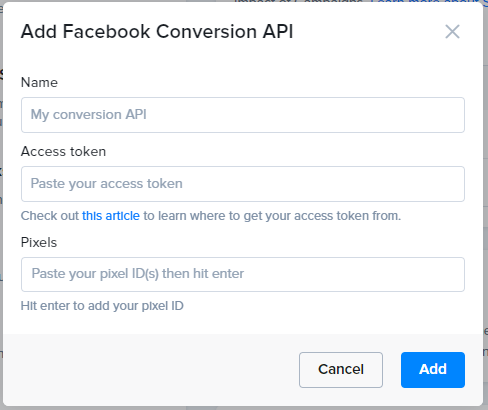
Enter a Name for this connection (for example “My conversion API”).
Paste the token in Access token.
Optionally, add your Test event code (you can find it in the Test events tab of Events Manager).
In Pixels, paste your pixel ID(s) and press Enter after each one.
The final step click on Add
- Note: Any cache or cookies that might be hung up on your browser should be removed Lightfunnels will start to send CAPI events along with the browser events.
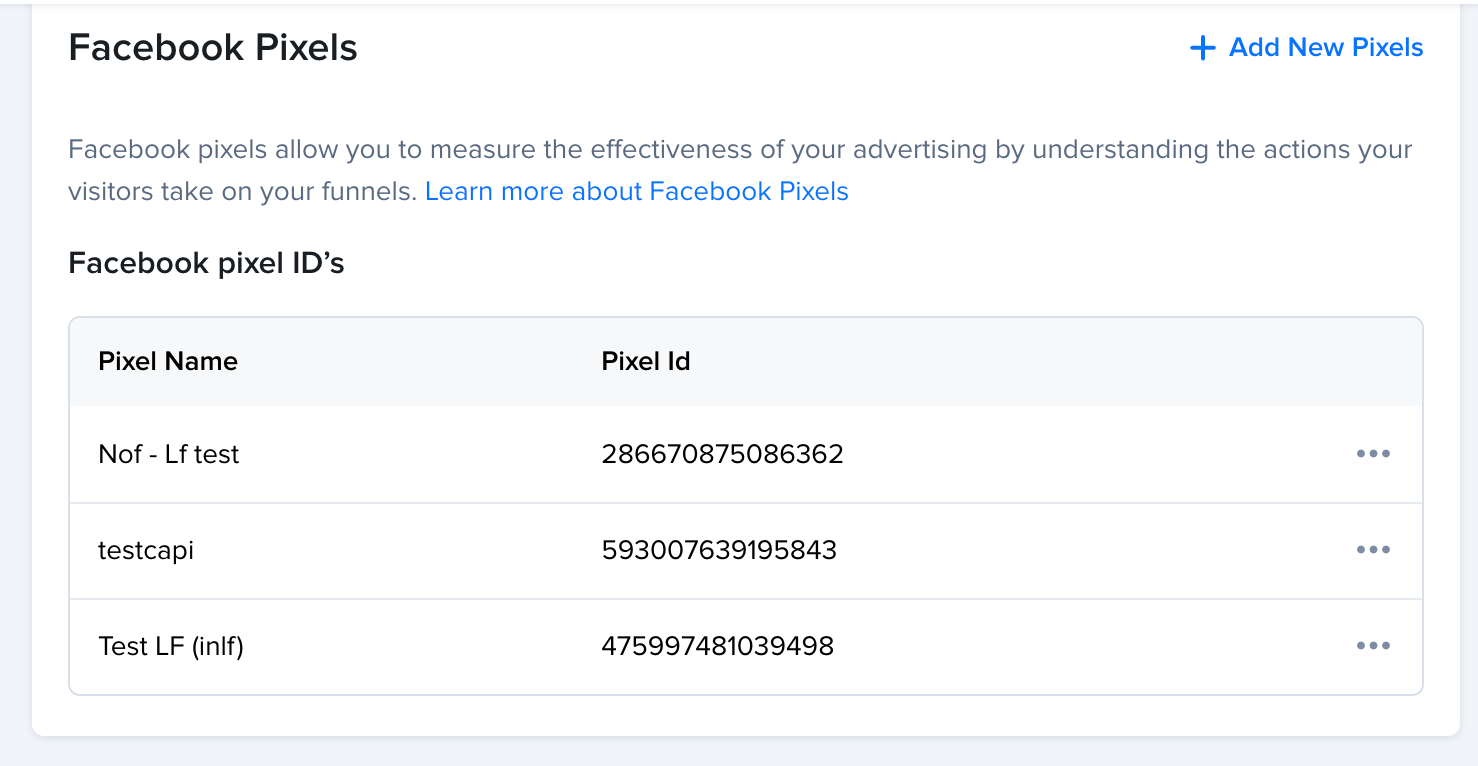
- Note: Please make sure you have your pixel added in the Facebook pixels section here (
Add new pixels), as this is what you will use in your Funnels settings
Test CAPI events (optional)
Section titled “Test CAPI events (optional)”Once connected, your connection is listed with its label, pixels and a Test mode toggle. Turn on Test mode to verify event tracking before going live, without affecting your real reports. Facebook test mode needs a test event code: if you didn’t add one when connecting, LightFunnels asks you for it when you turn the toggle on. Turn test mode off when you are done testing.
After finishing the steps above and if you want to test that everything is working well, start browsing your website to fire events. You should be able to see “Server” events in the overview tab :
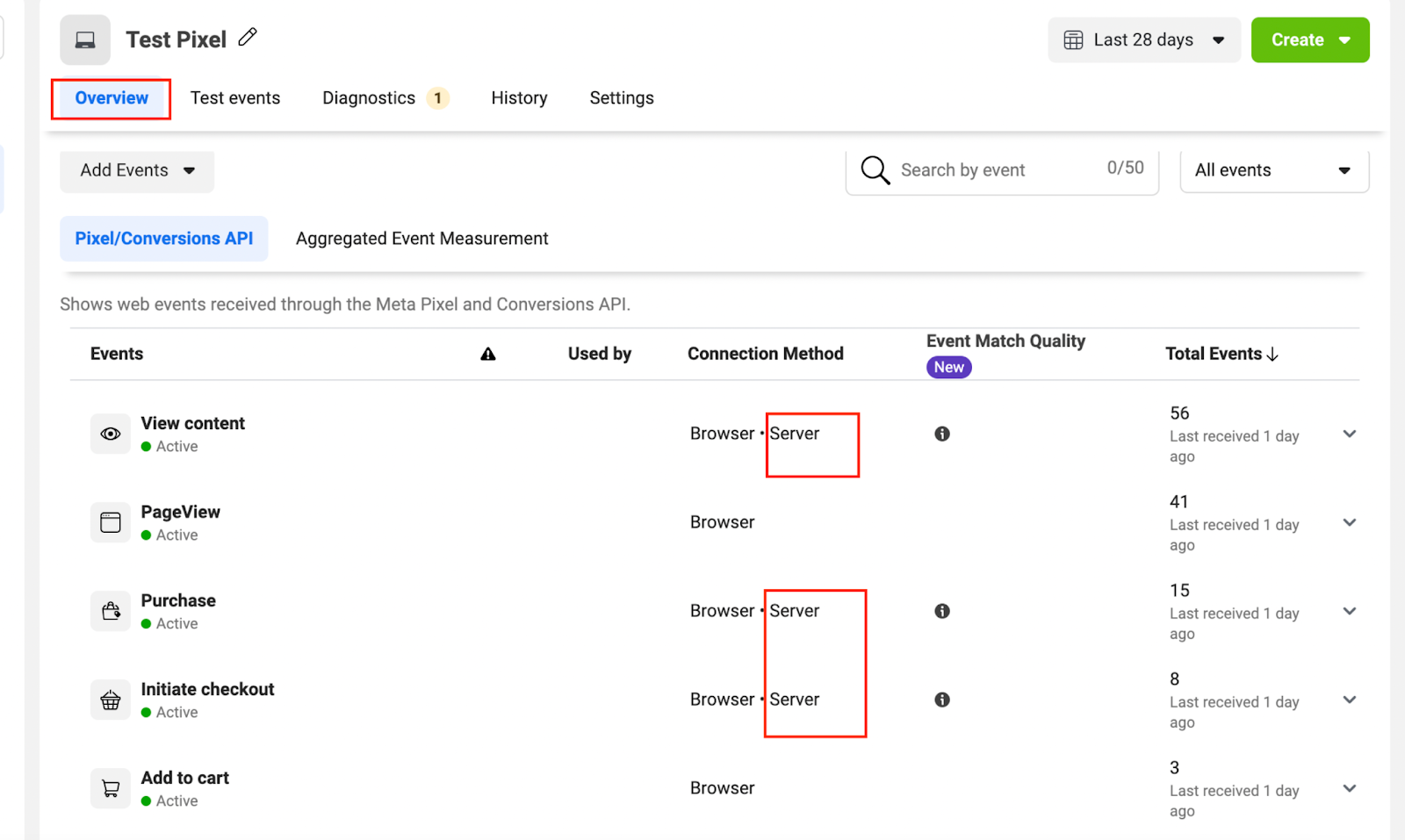
- Note: It’s possible to occasionally get warnings. Some of these alerts can be false positives.
To remove a connection, open the actions menu next to it and click Disconnect.
How can I manage Facebook pixel traffic permissions?
Section titled “How can I manage Facebook pixel traffic permissions?”Select your Pixel. Click Settings. Select Create Allow List or Create Block List from the dropdown menu under Traffic Permissions. Click on the button to confirm your selection.
- Note: to learn more about CAPI we advise you to visit https://www.facebook.com/business/help/